Note: I originally wrote a version of this post for 1EYE Society, and it was published in May 2023. The setup has evolved a bit since then, so I thought it might be fun to revisit the topic + highlight the latest changes.
…
I've been journaling since...checks the app...2012. There are many gaps in this decade+, but I've been fairly consistent for a good three years, more so in the last two.
I used Day One for most of this journey, but the habit finally clicked with the introduction of Daily Notes in Craft: this was easy to remember, it added structure, and I could link to events on my calendar, or to other notes in the app, providing context and slowly expanding my digital garden/PKM/whatever. But part of me didn't entirely trust that app, so I kept Day One in "sync", just in case, copying over entries at the end of each day. When I cancelled Craft and moved to Obsidian, Day One stuck around...until it didn't.
I really haven't looked back since: I've recreated most of the Day One functionalities that matter to me, and I'm free to add, alter, and streamline the journaling process in ways that weren't possible before.
So here's a look at my Daily Note's various components, circa...this week. Btw: Obsidian automatically applies a template I created, so all the formatting is ready to go, with all sections ready to be filled as soon as the note is created.
First, here’s a typical day (partial view):
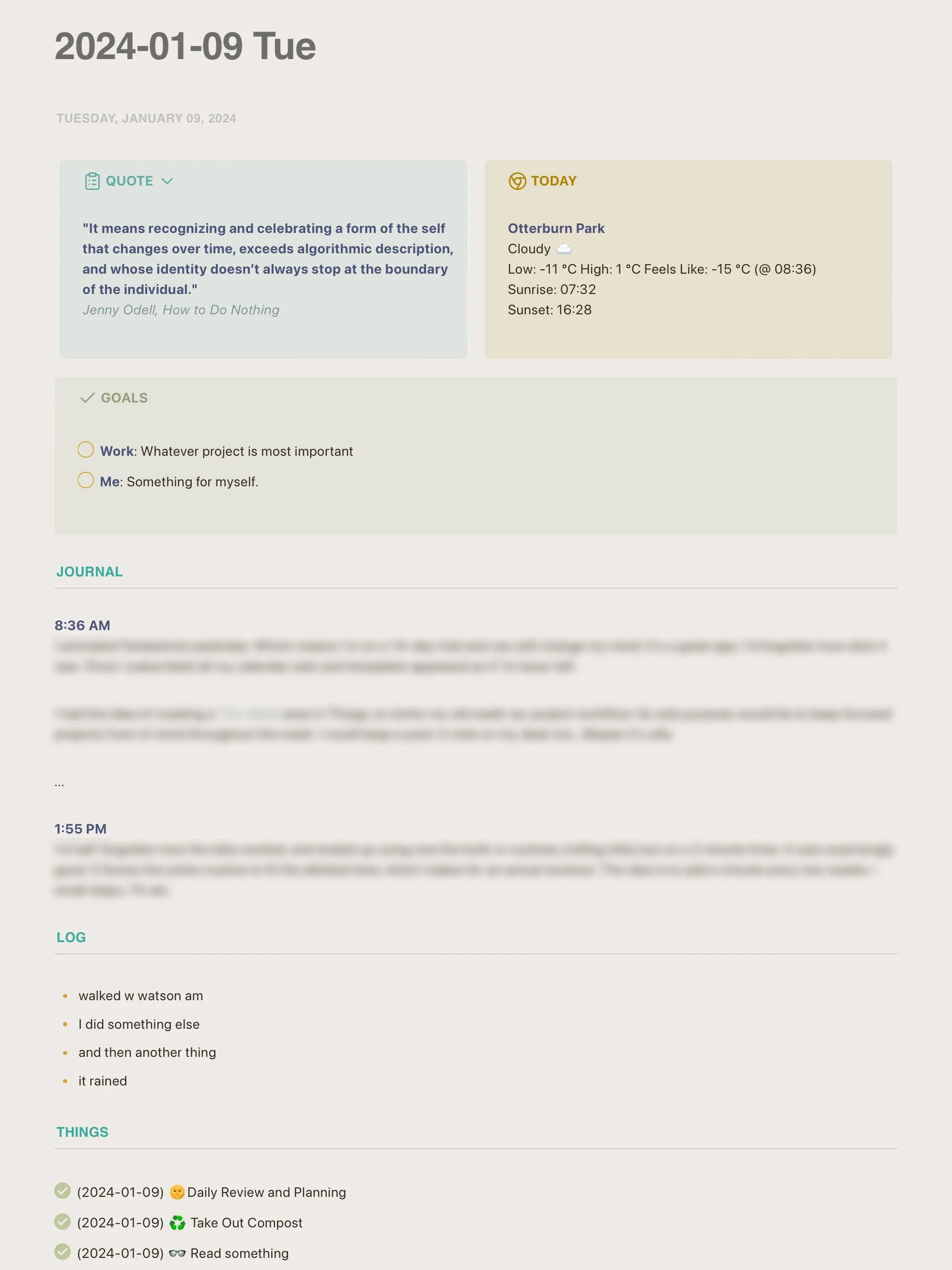
Now, let’s break this down.
The Components
Each note is divided into individual areas: some highlight information, while others are meant to log various items during the day. I use Callouts to create blocks (more on this below), and simple headings to separate each type of content.


1: Date
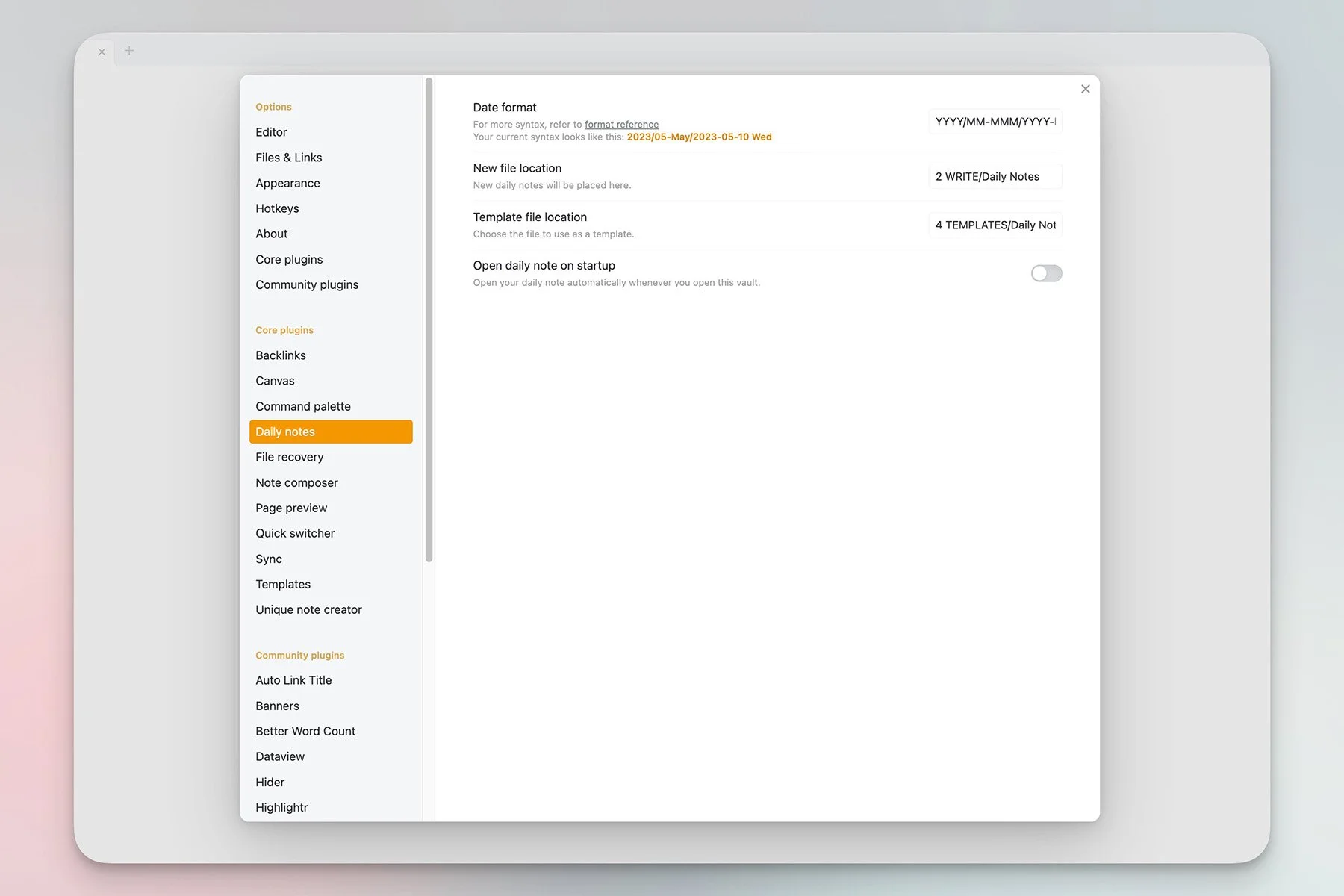
The title and dateline are automatically generated through two Obsidian core plugins—Daily Note and Templates:
Daily Note syntax: YYYY/MM-MMM/YYYY-MM-DD ddd. This creates the filename but also files the note into dated subfolders (2023/05 May/nameofdailynote). I also have the hotkey command-shift-D assigned to open, or create, the daily note (depending on the file existing or not).
Templates syntax: dddd, MMMM DD, YYYY. I like this format—it feels more "literary".


2: Quote & Weather

As I previously mentioned, those colourful boxes are called Callouts. It's another built-in Obsidian feature, but I've added the CSS snippet MCL Multi Column to create multi-column views. I use these as design elements: I change the quote once a month (I pick something from my Readwise collection), and insert the weather each morning. The location and weather info is generated by an Apple Shortcut that I found online (don't remember the source), and modified to open Obsidian when it's done (I also added a few missing weather emojis). Thanks to Macstories' Shortcut Launcher plugin, this means I never leave the app:
I run my Get The Weather command in Obsidian.
The Apple Shortcut launches.
It gets the info.
It copies it to the clipboard.
It returns to Obsidian.
I paste in the info, all of it already pre-formatted in markdown.
We're talking 4-5 seconds here, tops.
3: Weekly Goals

Another Callout, this one as a single-column. I just use this to keep my two main weekly goals top of mind.
4: The Journal
This is the main content (what I previously wrote in Day One). I've assigned the hotkey command-option-T to a small plugin called TimeStamper which, you guessed it, inserts the time.
5: The Log
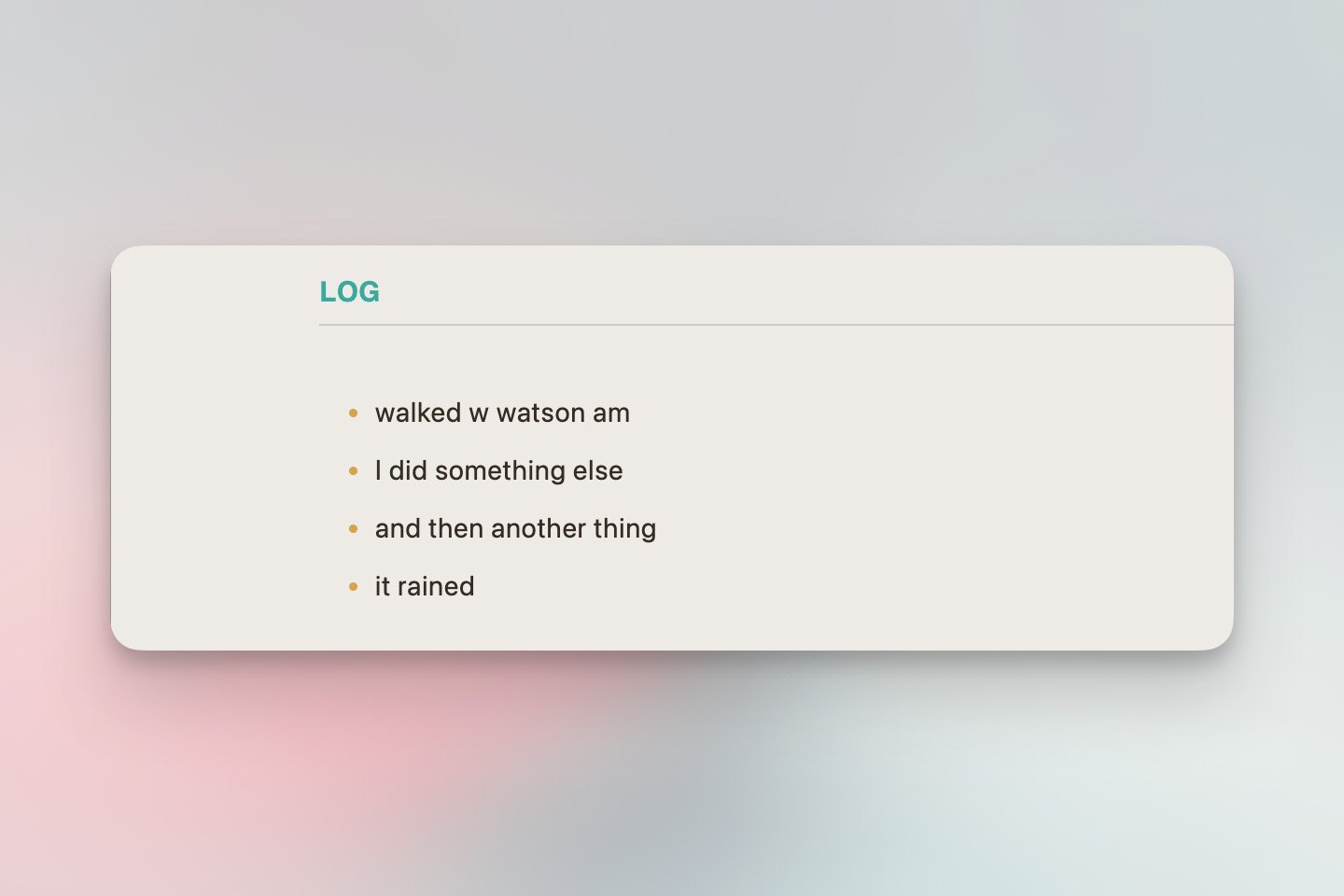
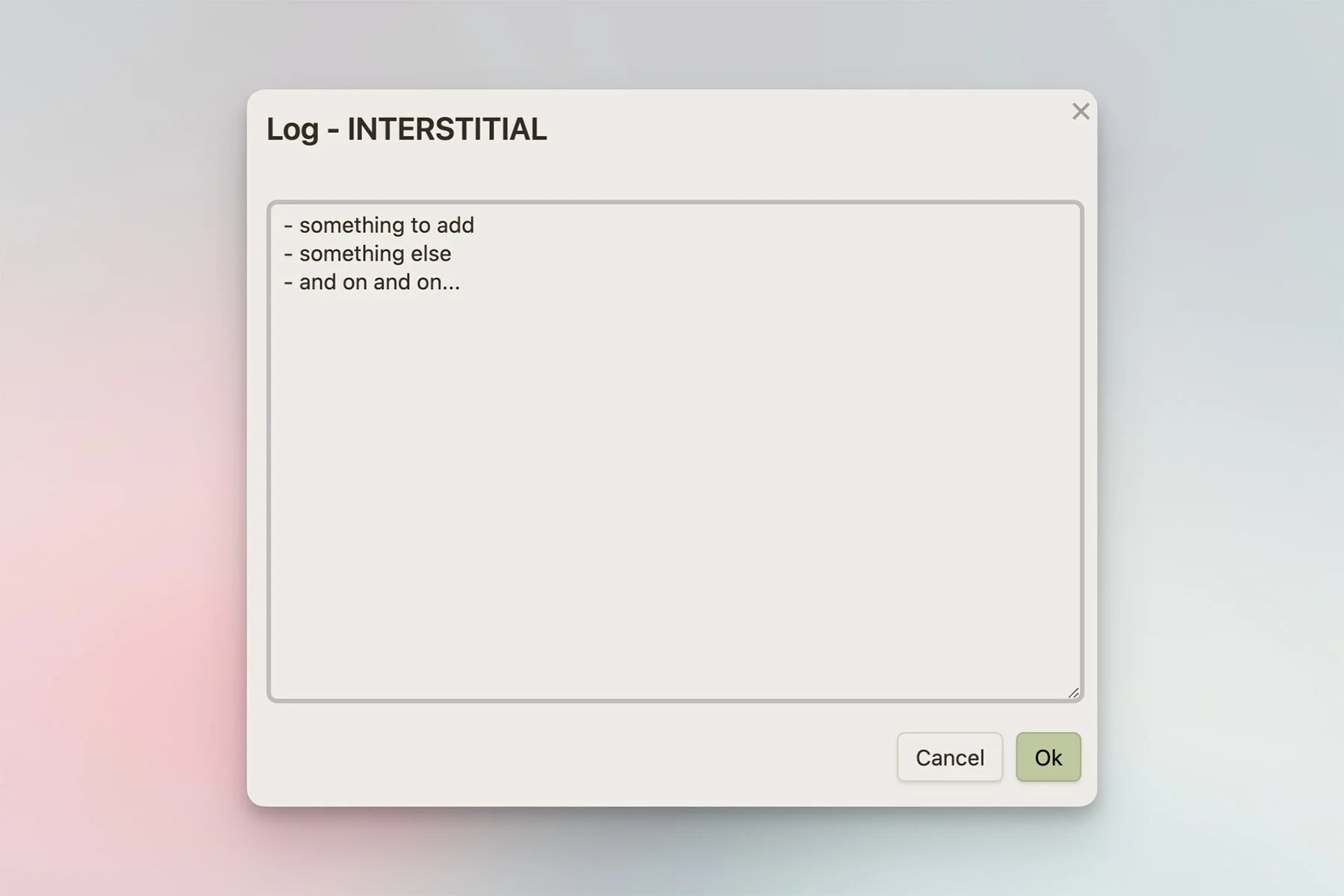
The log section is something I fill throughout the day, when working from home. I use a plugin called QuickAdd, but I won't get into its details today: this is a powerful add-on that can't be summarized in a couple of words. In this case I'm using it to insert and format interstitial bullet items from anywhere in Obsidian, without having to actually open the Daily Note.
I've even replaced command-N to launch the QuickAdd modal, which gives you an idea of its abilities. Notice I also use it to insert additional Notes to the Journal section (it inserts the time for me as well), and also log completed Things tasks:
The QuickAdd window.
A Log entry…
6: Things

All the pretty formatting is from Things.
When you copy items from Thing's Logbook it doesn't merely copy the titles: it formats each entry to Markdown, complete with date and checkbox. This is where that info ends up: just like the log, I fire up QuickAdd, select Log - THINGS, paste and hit Enter. The results are automatically inserted into the Daily Note, under the THINGS heading.
7-8: Mood & Images

That’s another multi-column layout, this time with a bunch of mood-related checkboxes (why not?). And lastly, a section into which I can attach images: I've created an Apple Shortcut that resizes an image, copies it into the daily note's folder, and appends it at the end of that note. Simple, but it does the trick. Btw: the heading says "RECORDINGS AND IMAGES" because I can also add audio files (yes, another Shortcut).
...
A daily note, or journal, isn't about the minutiae. It's just a record, ultimately a tool for making sense of anything that matters to us. My structure probably looks overly complex when dissected like this, but trust me, it's effortless to use. And that should be the goal, I think: to add clarity without becoming a time waster, and eventually, to offer a look back at the things we accomplished, and at the way we were.