“What sets Readwise apart, however, is its focus on surfacing content. Just like note-taking, highlighting can easily turn into an abyss of accumulation that never leads anywhere. To be useful, content needs to be actionable. When we interact with it, when we stop to consider why we found it valuable, or even better when we add our thoughts to an initial idea: that’s when it becomes useful. Our input elevates our comprehension. ”
I bought a Kindle Paperwhite in November 2021, and it remains one of my favourite pieces of technology. I still get a kick from the Kindle's e-ink display, the focused nature of the device, its battery life...but I especially love that notes and highlights now get to live-on, long after a book is finished. Readwise was my introduction to this world but, as I wrote in the last Bear Days post, I won't be renewing my subscription. There are several reasons behind this. Ultimately, I realized the one feature I'd miss most is the service's ability to surface saved highlights through a widget on my Mac, iPad, and iPhone. (1)
So, I had an idea: what if I could easily extract individual highlights from a book note saved in Bear? With each highlight converted into an independent (atomic) note, I could then use Bear's Random Note widget, point it at a dedicated tag, and pretty much replicate Readwise's widget, right?
Well, I did...and it works. Here's how.

This post is part of the Bear Days series. Browse other articles here.
Atomic Highlights
The Atomic Highlights shortcut creates individual notes from multiple copied highlights. The only requirement (2) is that they be divided by three dashes: --- (this is Markdown code for a dividing line).
An example:
Four highlights, with dividing lines. Btw: I’m using a different Bear theme here.
With this in place, the shortcut works in three steps:
Select and copy all the highlights you want to process. As many or as few as you need.
Select the note title (at the top). Make sure to only select the words—no space, no headings etc.
With the title selected, right-click and launch Atomic Highlights (from Services or Share menus). This step is very important: the selected text is used as input to generate titles and links for the new notes. Which is also why it needs to be the exact words—the source links will break otherwise.
Here's what it looks like in action:
My first version of this shortcut was wicked fast. But it created notes that were all named "Source Note (highlight). I didn't run into any trouble, but I worried having multiple notes using the exact same file name could eventually prove problematic. To fix this I added a timestamp to the naming scheme, along with a 1 second delay between each note generation. With this change, the shortcut creates a unique title on every pass: no two notes will have the same name+date+minutes+seconds. It adds a bit of time to the execution (as many seconds as there are highlights), but it's bulletproof.
This is what happens behind the scenes:
The shortcut parses the copied text on the Clipboard (the highlights) using the line character (---) as a divider. Each time it encounters the dashes it waits 1 second, then generates a new highlight note (through the Repeat block).
New notes are automatically named as "Source Title (highlight) ddMMyyyyHHmmss.
Each new note includes a link to the source note. (3)
Each new note includes an organizational tag (I use #think/atomic).

The details…
With Bear's Random Note widget set to the #think/atomic tag, it works perfectly:


I do wish this would display rich text instead of markdown, because it looks much nicer in Bear:
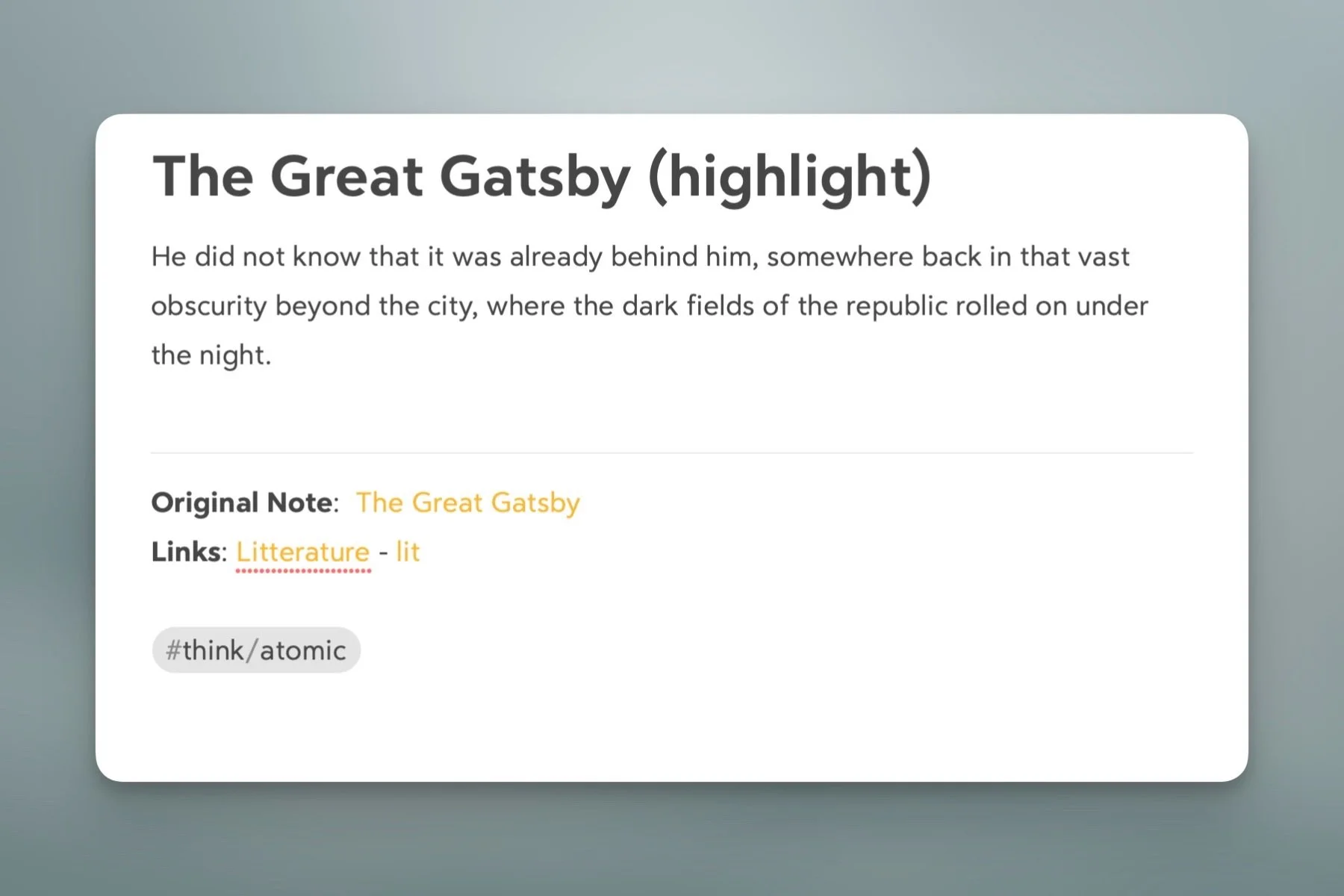
But that's ok. Life is nothing without hope...;)
One last detail: Bear has a feature called Note from Selection, but it's only available on macOS. It also doesn't offer any customization, or create a link to the source note. Right now, using Shortcuts is a better option for me.
Here’s a link if you want to give this a try: Atomic Highlights in Bear 2
1: For the same reason I was so hellbent on creating an On This Day feature in Bear: it introduces serendipity to the thought process. It's a potential trigger.
2: Important: make sure to enable Allow Sharing Large Amounts of Data in Shortcuts settings (under Advanced). Otherwise you might hit the limit and get an error. I did.
3: By inserting the exact note title between double-brackets, Bear does the linking automatically.