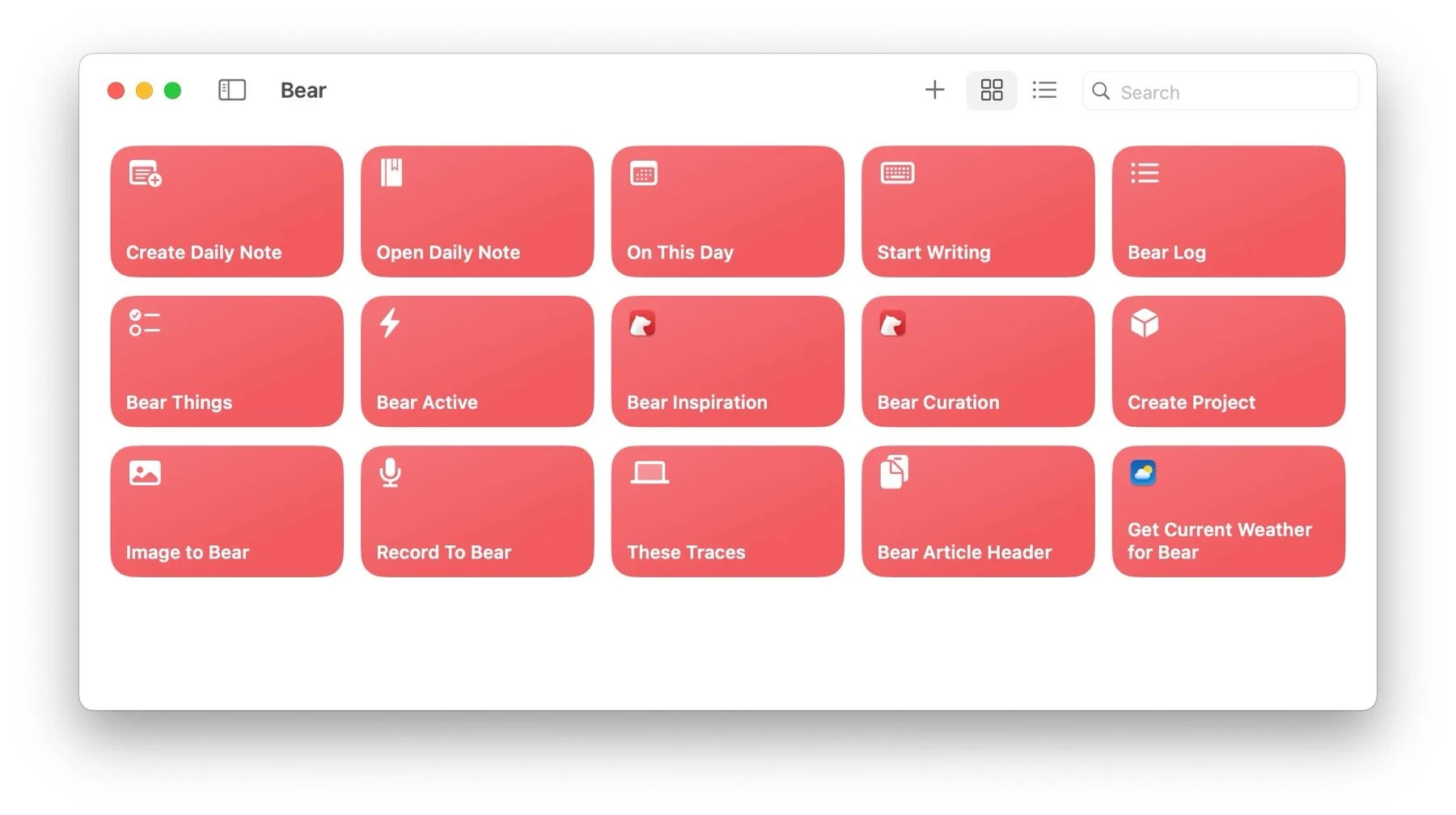
Update: as requested, I’ve added public links to additional shortcuts at the end of the post. Note that most of them are designed to work in tandem with the Create Daily Note in Bear 2 shortcut.
In the first instalment of Bear Days (yup, it's officially a mini-series), I promised a look into the shortcuts I use with the app: this is that. I’d planned to share them, but as I prepared this post I realized they're all based on very specific personal setups that aren't easily transferable. The one exception to this is On This Day in Bear 2, and you can download that one below.

This post is part of the Bear Days series. Browse other articles here.
That being said, if you'd feel comfortable adapting some of these to your needs, let me know: I'll create public links and post them as an addendum.
Apple's Shortcuts app has become essential to how I use macOS, iPadOS, and iOS. In many ways it ties all three platforms together—a set of write-once/run anywhere workflows that can be launched from widgets, Spotlight, the Dock, the app itself, or even a simple text link (using X-callback URLs). Shortcuts (the app, uppercase S) isn't foolproof, and it can be wonky and hard to troubleshoot when something goes wrong. But it saves me enough time every day that I can accept the occasional hiccup.
I was already using several shortcuts (applets, lowercase s) with Obsidian, but these were all based on manipulating folders and text files. With Bear, I can now use action blocks built specifically by the app's developers (Shiny Frog)—which are both more powerful and easier to work with.
Here's a quick look at the ones I use most frequently.
SHORTCUTS
Create Daily Note
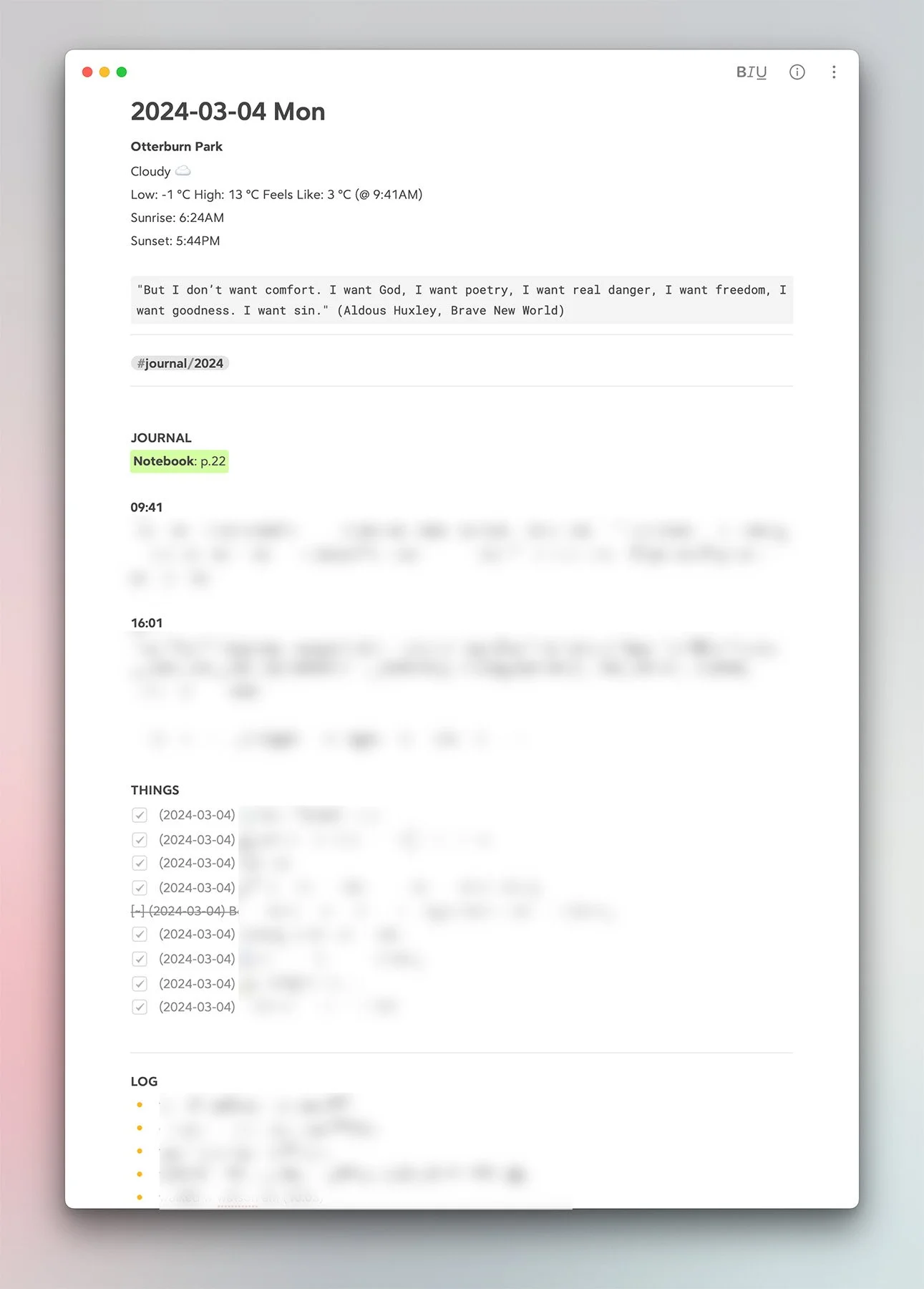
Creates the day's journal entry by formatting the current date as yyyy-MM-dd EEE, and using this as the note's title. The shortcut also fetches weather conditions, and inserts this at the top. It uses Markdown to format the note the way I like it. (1)
Here's a typical entry:
Bonus: I can also create this daily note directly from Things (or any other app that supports urls), using x-callback:
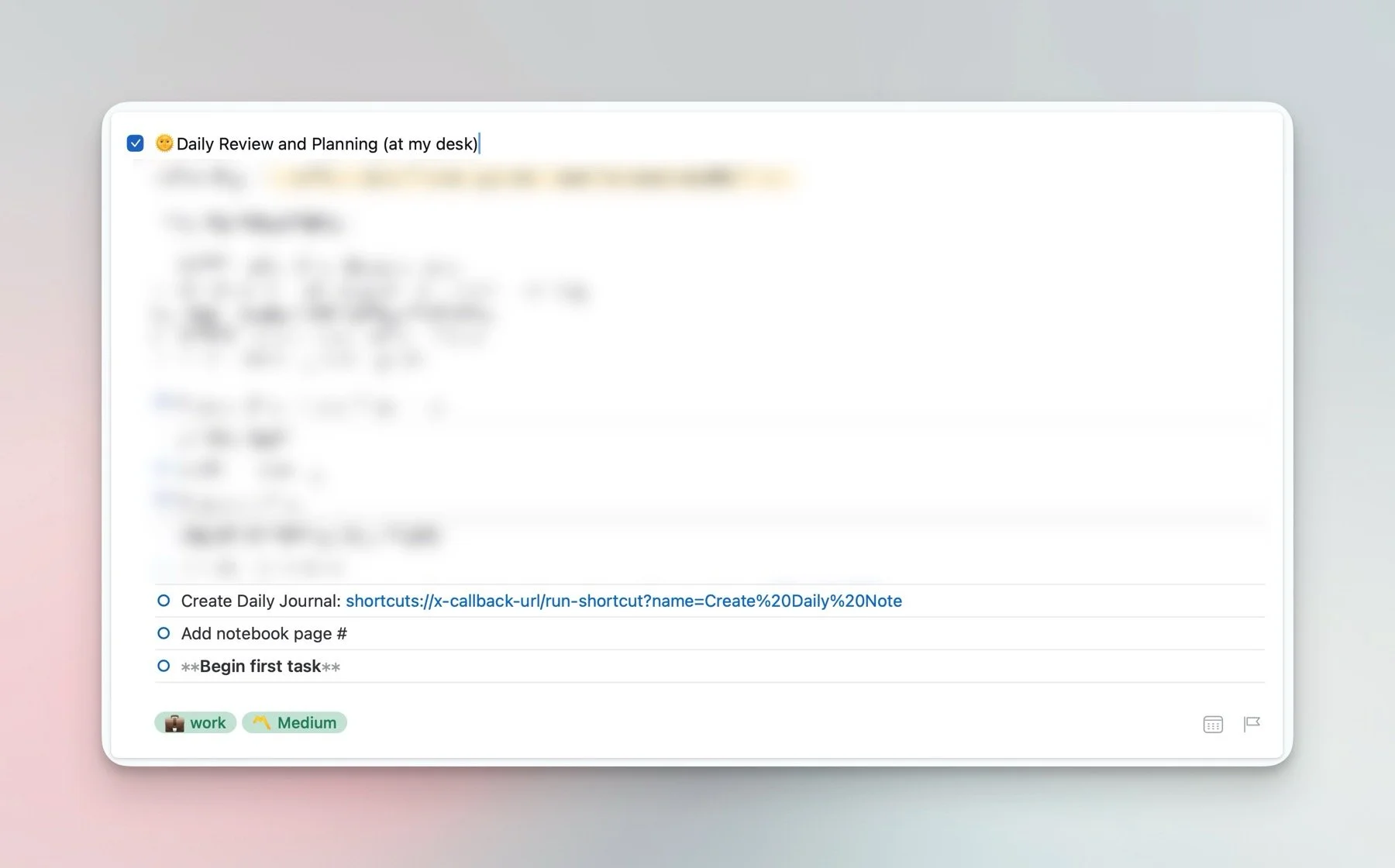
Click the blue link, out comes a note.
Open Daily Note
This...opens the daily note. I know, crazy. The shortcut searches for a note where the title is today's date (again formatted as yyyy-MM-dd EEE). Simple, but effective. I keep this one in the Dock, and I've assigned a keyboard shortcut to it as well.
Bear Active
Bear has a Pin feature just like Apple's Notes app. It's great, but I also use an #active tag: it's more targeted, and it allows me to see any texts I'm currently working on, and nothing else. It's like a focus mode for Bear notes. This Shortcut "opens" the active section. (2)
On This Day
I mentioned this one in the previous post: it scours all of Bear's content, and returns any note tagged with #journal, created in previous years, on the current date. This is similar to Day One's feature.
I kept this shortcut simple: all the queries are entered manually within a text field (going back to the year 2000). The entire field is then sent to Bear as a search query. This means I need to update it every 1st of January to add the year that just ended—but I've already set a recurring reminder for this in Things ;) (3)
Btw: variations of this shortcut could be used to create multiple saved searches, for any query, any tag(s).
Download: On This Day for Bear 2
Bear Log
See that LOG section in the daily note? That's a spot reserved for interstitial journaling, or Bullet Notes.
On launch, the shortcut displays a floating, multiline, text entry field, where I can type anything I'd like to log during the day—a walk with Watson, something about the kids, a conversation, a new music draft, etc. Anything that happens but isn't recorded elsewhere as an "official" task. Each line becomes a bullet point: hitting Return creates a new line; hitting Command+Return commits the entire results to the daily note.

It uses Bear's Add Text to Note block to target the LOG header:
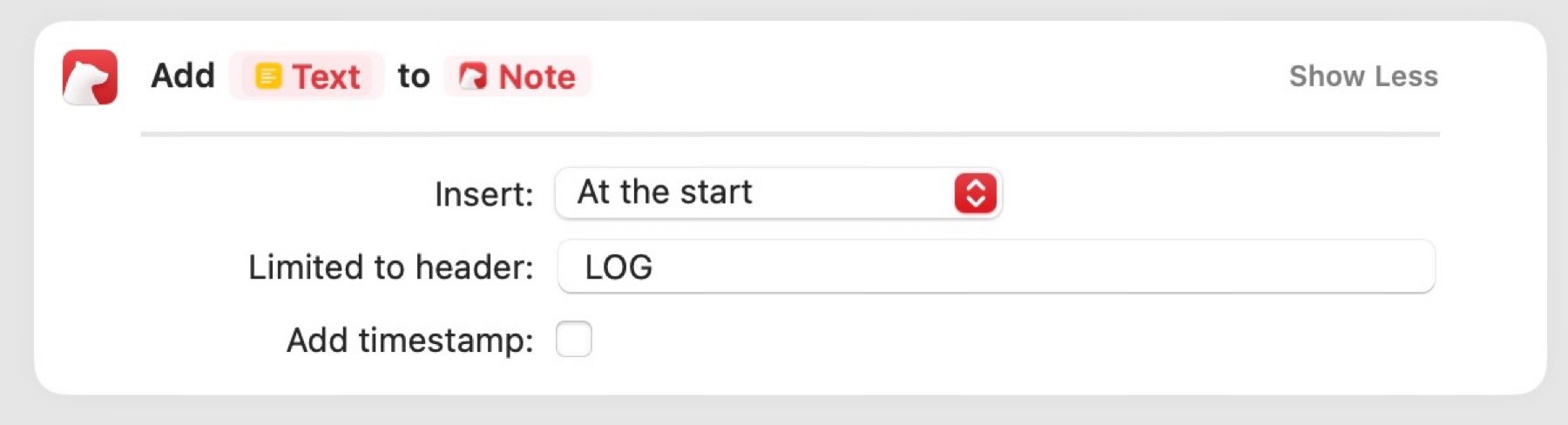
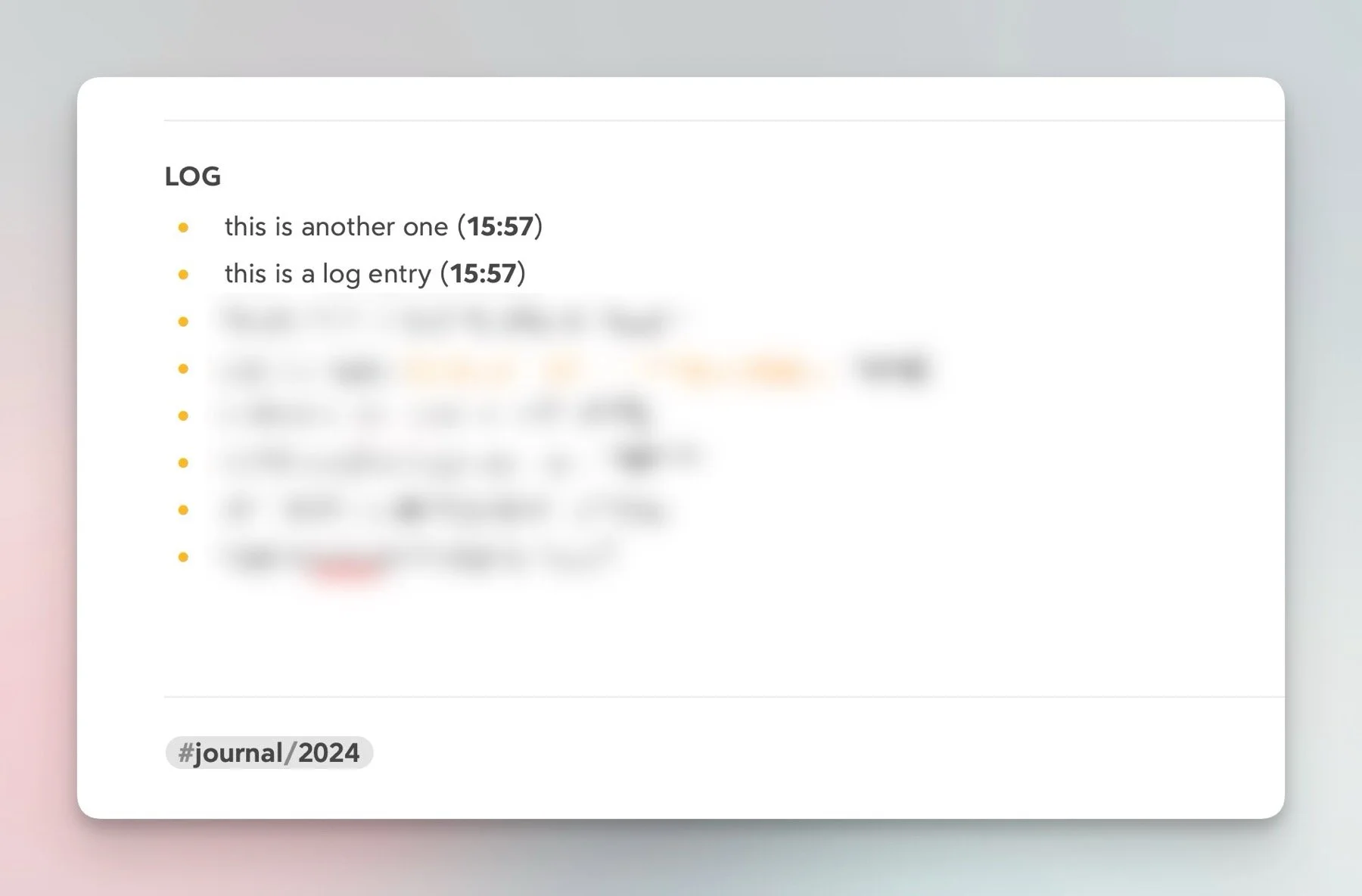
The timestamp is added to each line through a customized current date variable (the Bear action can do it but it inserts the full date). Again this is all formatted using Markdown. Here’s a look at this shortcut’s details:
The important part is to format Current Date in the Get Note block to match the title of the daily note.
Bear Things
Same idea, but this time the results go under the THINGS header. Any currently selected item in Things (typically from the app's Logbook) is sent to the daily note via Share (iOS+iPadOS), or Services (macOS). When multiple items are selected, Things automatically formats entries as Markdown tasks.

Start Writing
This one is personal, and more complex: it asks for a title, then displays a menu of various writing destinations—blog, communications, projects, these traces, etc. The point is to immediately assign any relevant tags. But the shortcut will also add a timestamp to the title of a communications document, for instance, or launch a more complex series of actions if These Traces is selected. Each choice can branch out into a different set of options.
It's a one-stop launcher that immediately files a note where it needs to go, formats anything that needs formatting, all easily and without fuss.
Create Project
Even more complex. It's entirely based on the shortcut I described in Integrations: Obsidian, Things, And Calendar. I just replaced all the actions that were targeting Obsidian with Bear-related blocks (and links). The rest of the workflow is identical.
Image to Bear
Sends any shared image to the Daily note.
Record to Bear
Launches the built-in audio recorder action, and creates a note with date/time and city as the title. I use this one exclusively from the iPhone.
Bear Curation
This sends any shared URL to a Curation note (where I save potential links to be included in These Traces). On iOS and iPadOS I can also use Bear's much sleeker Share Sheet extension. (4)
Bear Inspiration
Sends shared images to this year's Inspiration Journal note (I've moved this to Bear again, since I no longer use Day One). It also converts and resizes the images to control storage.
The Inspiration Journal note.
Widgets
With native apps, come widgets too. Bear offers a ton of them, and I use different variations depending on the device. These are the ones currently living on my Mac desktop:
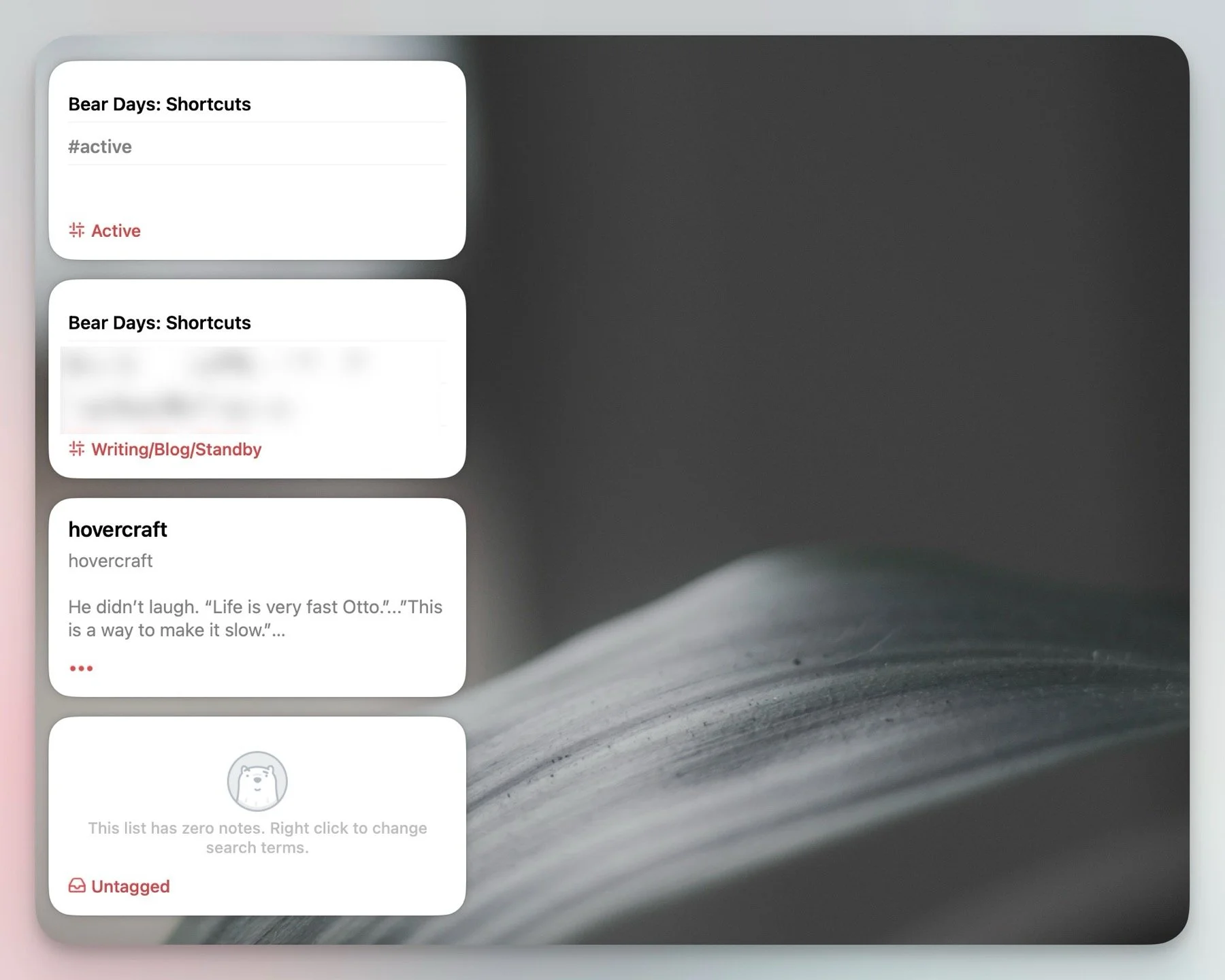
From top to bottom:
Active notes.
Blog posts on standby.
Random note (a fun way to surface content).
Untagged (to spot anything that hasn't been filed yet—rare, but just in case).
…
So there you have it: my current "automation" setup in Bear 2. I'm really just scratching the surface: between Bear's search syntax and Shortcuts' feature set, there's a lot that can be achieved without breaking a sweat.
If you have any questions just hit the comments below.
————————
1: The quote is entered manually, at the beginning of each week. I could pull this automatically like I do with the weather, but I prefer choosing something specific from my own Readwise library. I feel this may hold more meaning in the future than some random bit generated by a website.
2: Remember that Bear uses tags the way other apps use folders. So this is like navigating to an active folder.
3: Yes, I could add individual search strings for the next 40 years without any adverse effects. You can do that if you like, and never worry about updating the shortcut. I just prefer not seeing the current day's entry when browsing On This Day.
4: One day on the Mac, maybe? Fingers crossed.