This post is part of the Bear Days series. Browse other articles here.
The concept of tags has been around forever. Even Apple's Notes and Reminders apps offer tags now. In Bear, however, they take on a more central role: they're a foundational element, serving as the basic building block for organization. Tags don't just act as labels, they entirely replace folders. And because notes can include more than one tag, this means a note can exist in multiple "locations". A folder, by contrast, is always a single, fixed, destination. It's an accepted paradigm, but I've always found this constraining. (1)
With tags, notes aren't so much filed as contextualized. It's a much more fluid system. But there's a downside: a multitude of tags can easily lead to a crowded library if we're not careful. As they proliferate, the sidebar in Bear grows accordingly, potentially turning into a labyrinthian mess. (2)
Enter linked notes.
I don't use tags as a way to link notes through topics, or subjects. That's because I was first introduced to the concept of PKM through Craft, and Craft never offered tags (still doesn't afaik). Instead, I quickly discovered (as others did) that I could use specific notes as jumping off points, through back-linking. That's what a linked note is: a kind of placeholder whose only purpose is to display backlinks. It's like a table of content for a single topic.
To use this effectively, we first need to understand how it works. There are two types of backlinks, as described in Bear's FAQ (emphasis mine):
Linked mentions - Other notes with direct wiki links to the current note.
Unlinked mentions - Notes with unlinked text mentions of the exact title of the current note.
Both types can be displayed in Bear's Backlinks panel.
Let's unpack.
WEAVING OUR WEB
A wiki link is simply an internal link, from one note to another. We create one by enclosing any word (or sentence/paragraph) in double brackets:
[[this would become a wiki link]].
Say we have two notes: Note A and Note B. If we add a wiki link in Note A to Note B, that's called a linked mention. When we do this, Note A appears in Note B's Backlinks panel, because it directly links to it. Here's what I mean:
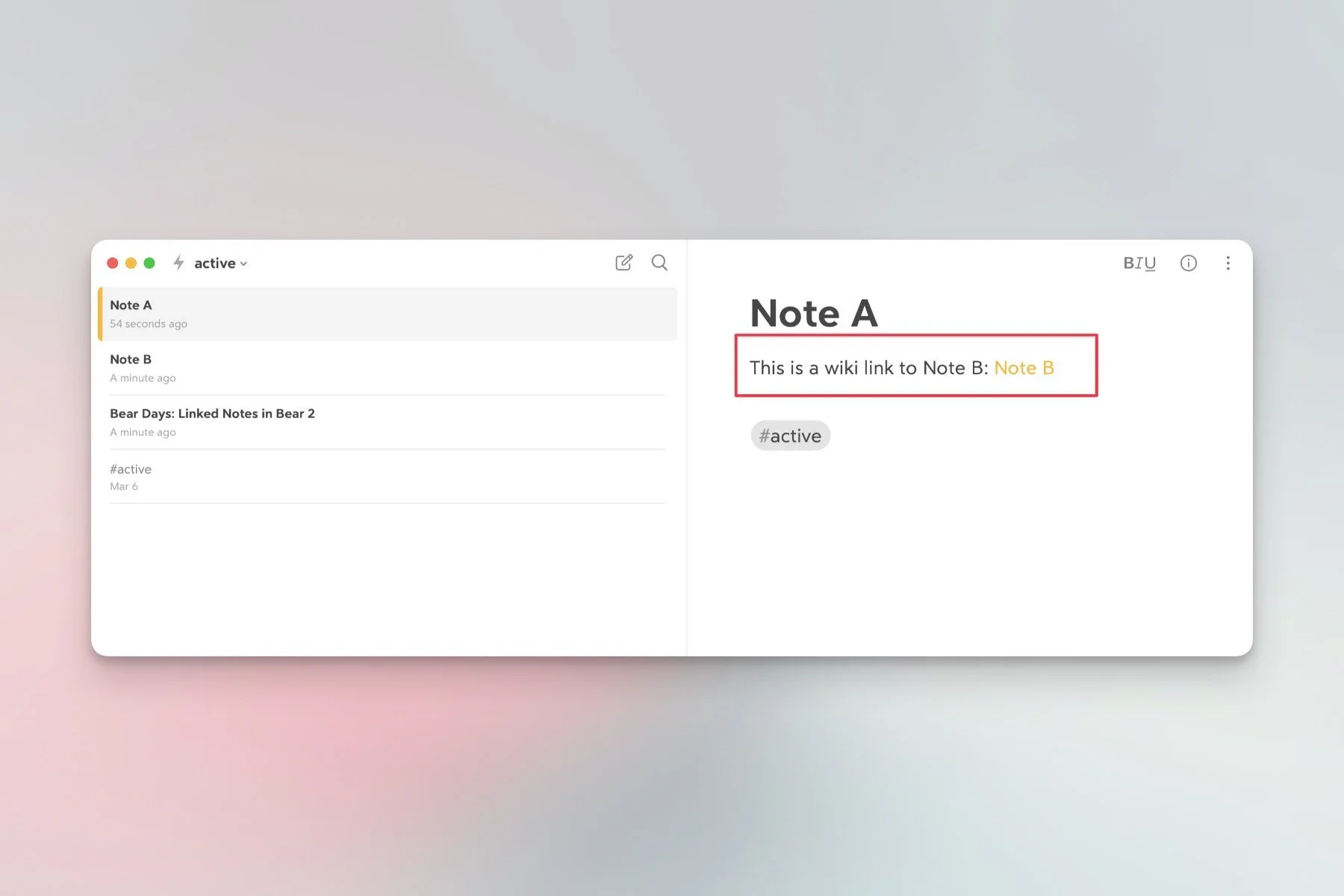
A wiki link in Note A (in yellow)...
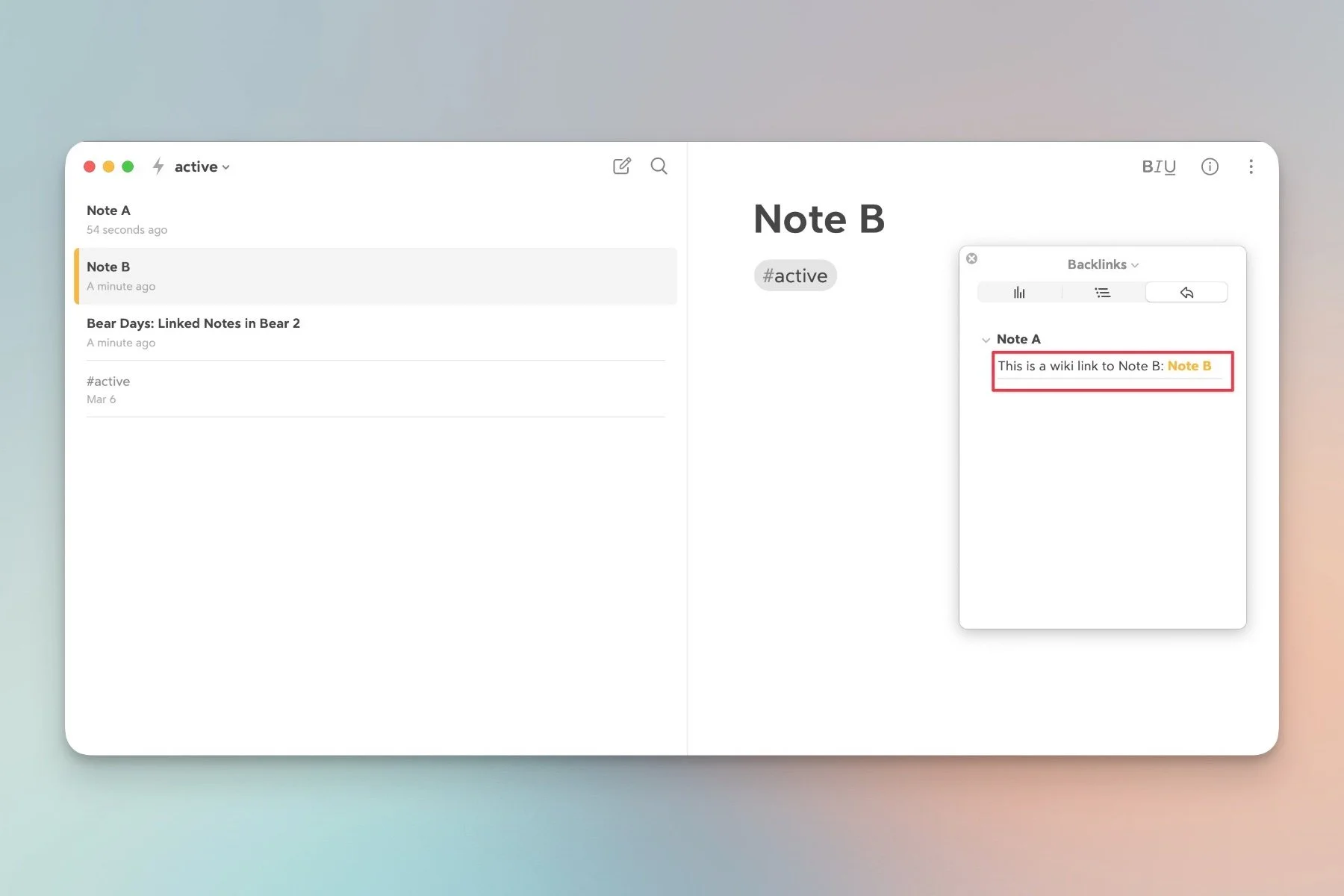
... is a backlink in Note B (still yellow).
Now, if we rename Note B to angels, two things happen:
The wiki link in Note A is automatically renamed to reflect the change.
Any note that contains the word angels, anywhere in its text, will now also be listed in the Backlinks panel. Those are called unlinked mentions:
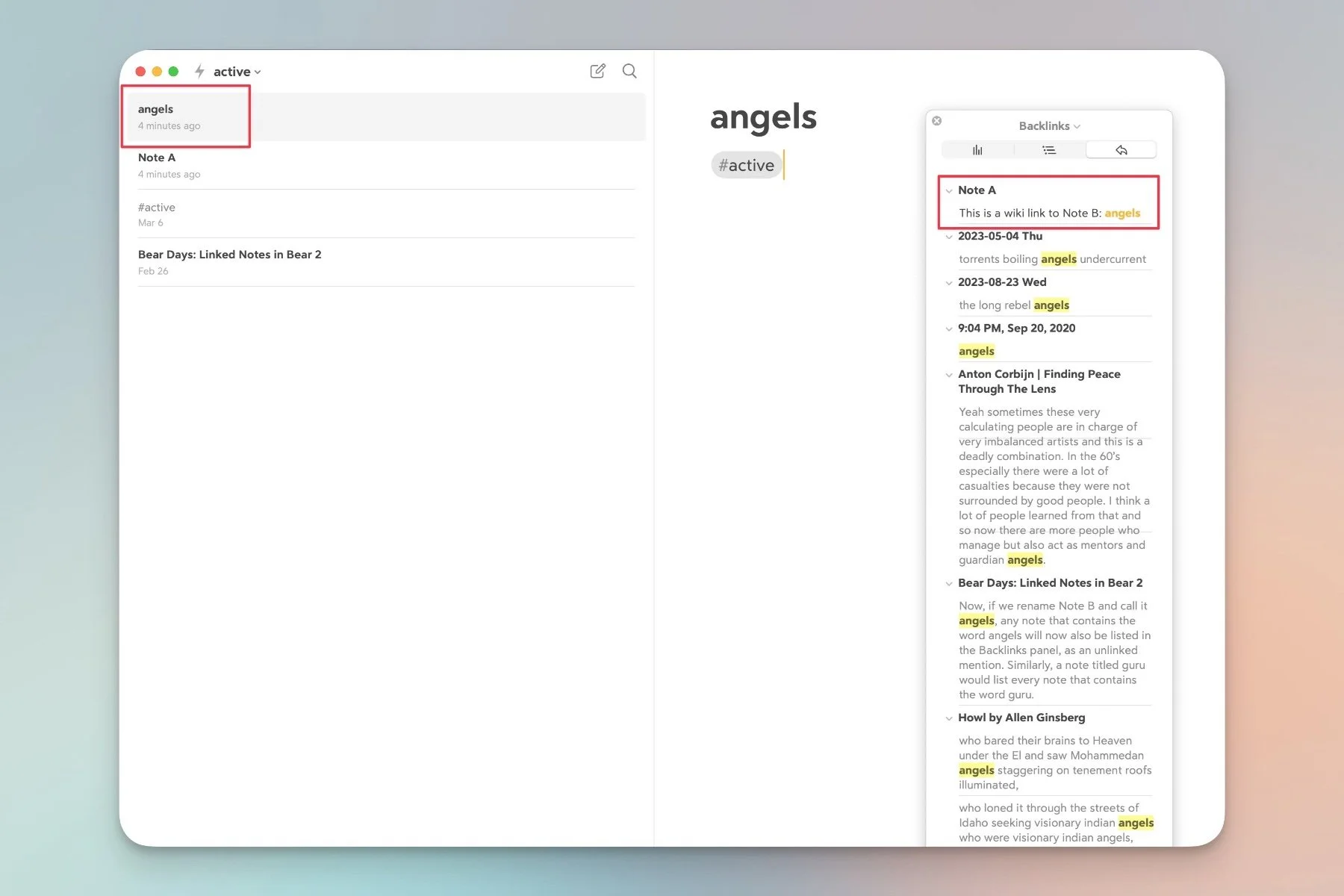
Same note, different name, lotsa links. Also: I have a thing for angels apparently—who knew.
Similarly, a note titled guru would list every note that contains the word guru, a note titled kitchen... well, you get the idea.
Having both linked and unlinked mentions is extremely powerful, because it offers two distinct layers to work with. Linked mentions are more focused, but they also require our input: wiki links need to be intentionally added to notes (just like tags). It's a deliberate action. Unlinked mentions, while fuzzier, don't require any work at all on our part: any note immediately provides a targeted search of its title. This can be too broad, but it also offers instant discoverability.
Plus: any note can easily be turned into a linked mention by simply adding the appropriate wiki link, anywhere in its content. (3)
But there's another advantage to the Backlinks panel: the results listed point to the exact sentence, or paragraph, where a wiki link (or word) appears. It displays much more focused information.
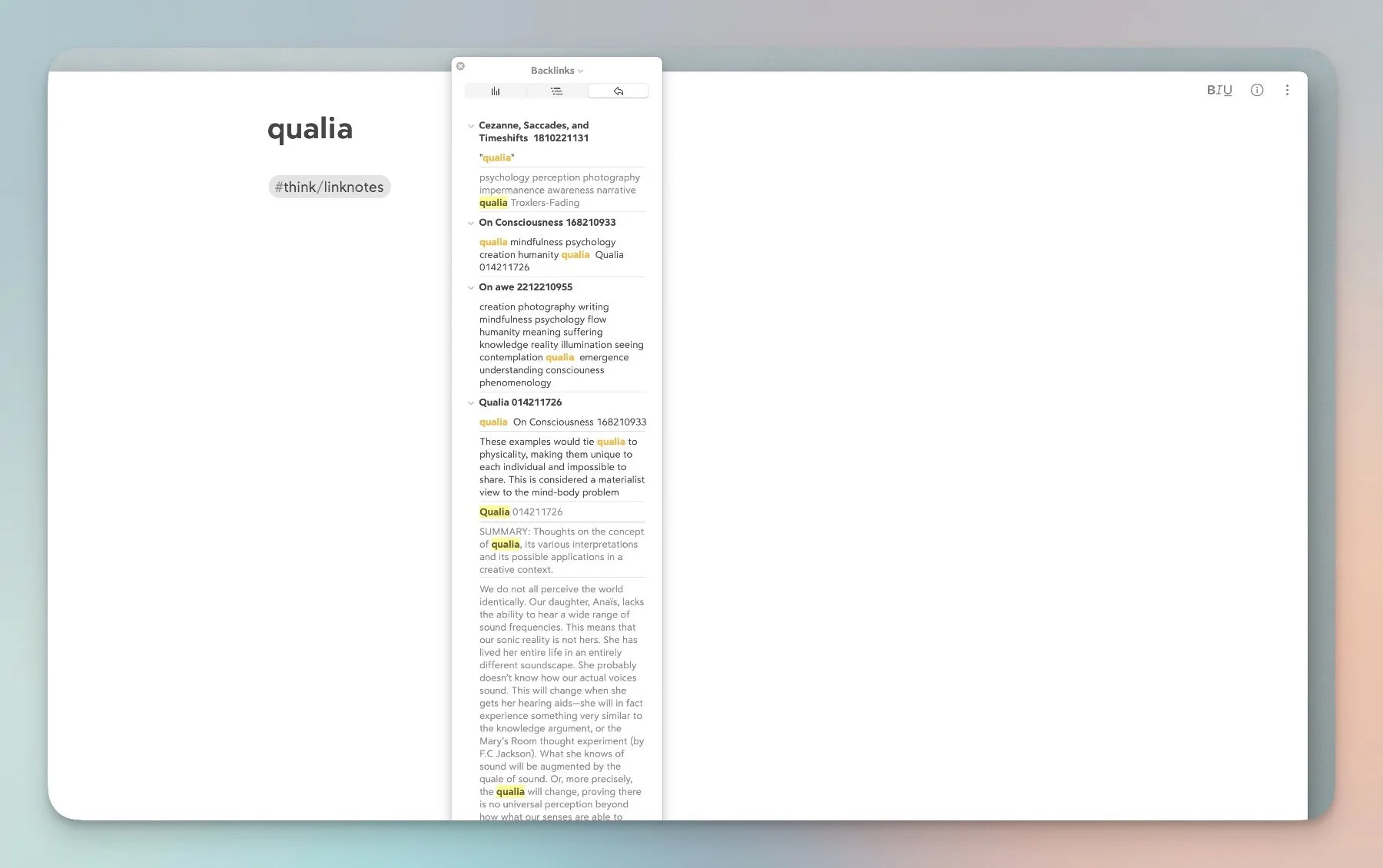
Notice how we can immediately see where, and how, the word "qualia" is used in each reference.
Linked notes don't just make the sidebar more manageable: they bring an entirely different view of a library's content.
TIPS
A few tips based on what I've discovered so far:
Remember that unlinked mentions are only instances of the EXACT title. For this reason, the title of a linked note should most often be kept to a single word. (4)
For example, in a note called everything great about squirrels, the Backlinks panel will only display results for "everything great about squirrels". Not "squirrels", and not "great". It can only be the whole line:
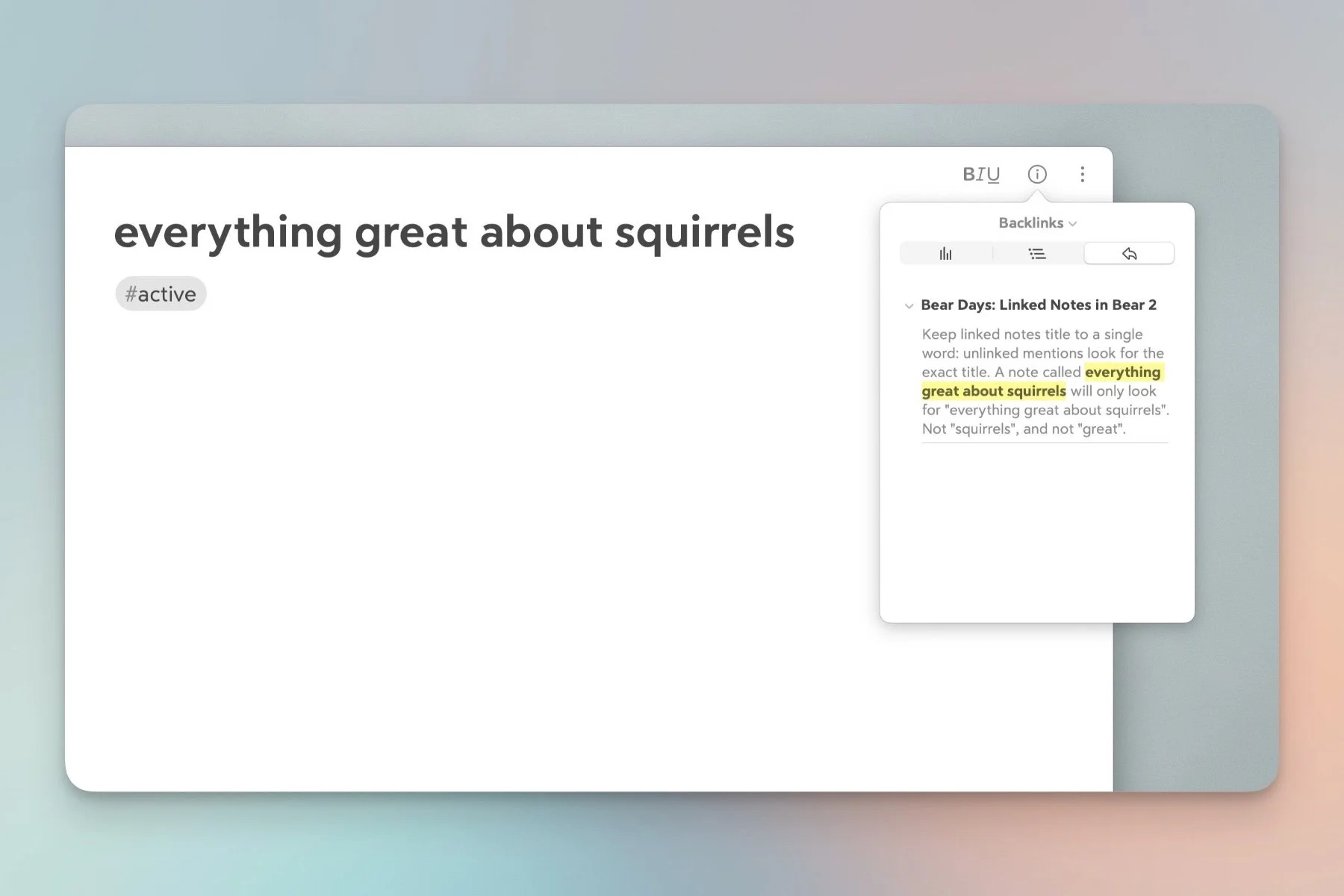
I do like squirrels—really. I just don't write about them...
Use a tag to identify (and file) all linked notes: this makes it easier to browse all of your "topics"—it's like going through the pages of a personal encyclopedia. I use #think/linknotes (tag+subtag):
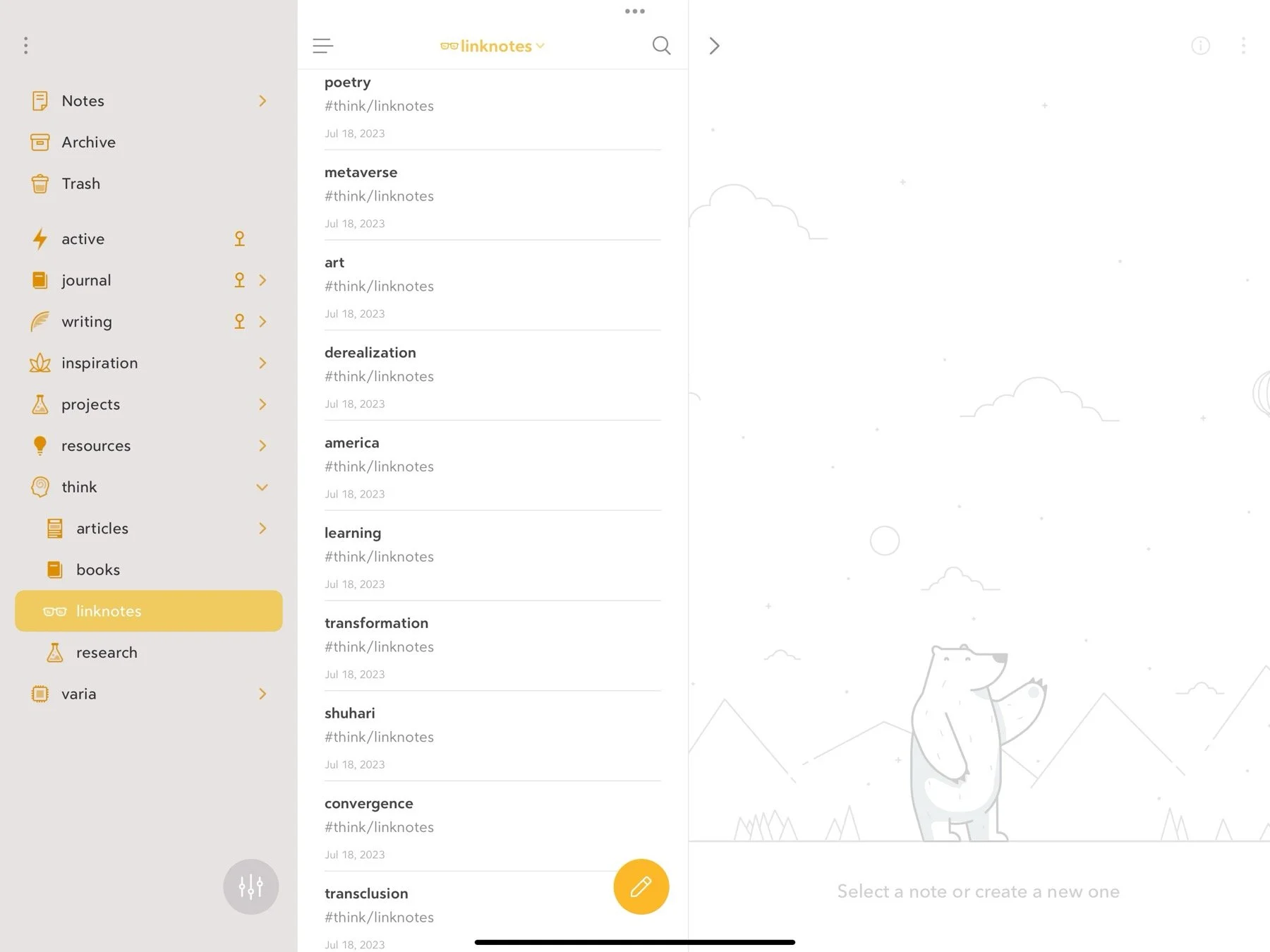
Organized linked notes in Bear (iPadOS).
On macOS, the Backlinks panel can be detached. Very useful (especially when browsing, as I just described).
Like tags, a note can contain any number of wiki links.
If you want to avoid breaking flow while adding new links as you write, just visit Bear's Untagged section after you're done: there, you can tag any newly created linked notes in one go. It pays to be tidy in this type of workflow. (5)
METHODS
There's no right or wrong here—a system based entirely on tags can be just as effective. Our minds all work differently. My preference is to keep organization and research separate from each other: tags allow me to navigate content, backlinks offer depth and context. When I add a tag to a note there's no indecision, because I know what it's meant for, and vice versa. I find the boundaries useful.
As always, if you have any questions don't hesitate.
————————
1: It's why I rarely browse folders in Lightroom, relying on database views instead—smart albums, metatada, collections, etc. A habit that goes all the way back to Aperture. In Obsidian, I relied on Dataview and Bookmarks.
2: Subtags are a solution to this, but that can also require a lot of constant management (not to mention decisions about parent tags, subtags, which one goes where etc) .
3: Bear offers a choice of turning unlinked mentions on or off.
4: Unless you're referencing another note. A book title, for example.
5: This works through drag and drop: select all notes and drop them on any tag to batch assign.