Apple finally released macOS Ventura and iPadOS 16 earlier this week, after months of developer and public betas.
UPDATE (October 29)—It turns out I fumbled the nomenclature in this post: what I call The Stage is in fact all windows on-screen when using Stage Manager; the sidebar is called The Strip. I discovered my error through this wonderful post on Worms And Viruses. It’s a programmer’s point of view, and offers a great look at where SM fits in the evolution of window management. His car transmission analogy is particularly effective I think.
…
I’d been running the iPadOS beta for months on my 2018 iPad Pro with very few hiccups, so this was mostly business as usual for me. For the record, I like this OS and its focus on desktop-like functionality. As for macOS Ventura: it’s mostly indistinguishable from its predecessor at first glance, apart from the redesigned-and-very-vertical System Settings. Seriously, it almost looks like an iPhone app emulator on the desktop:
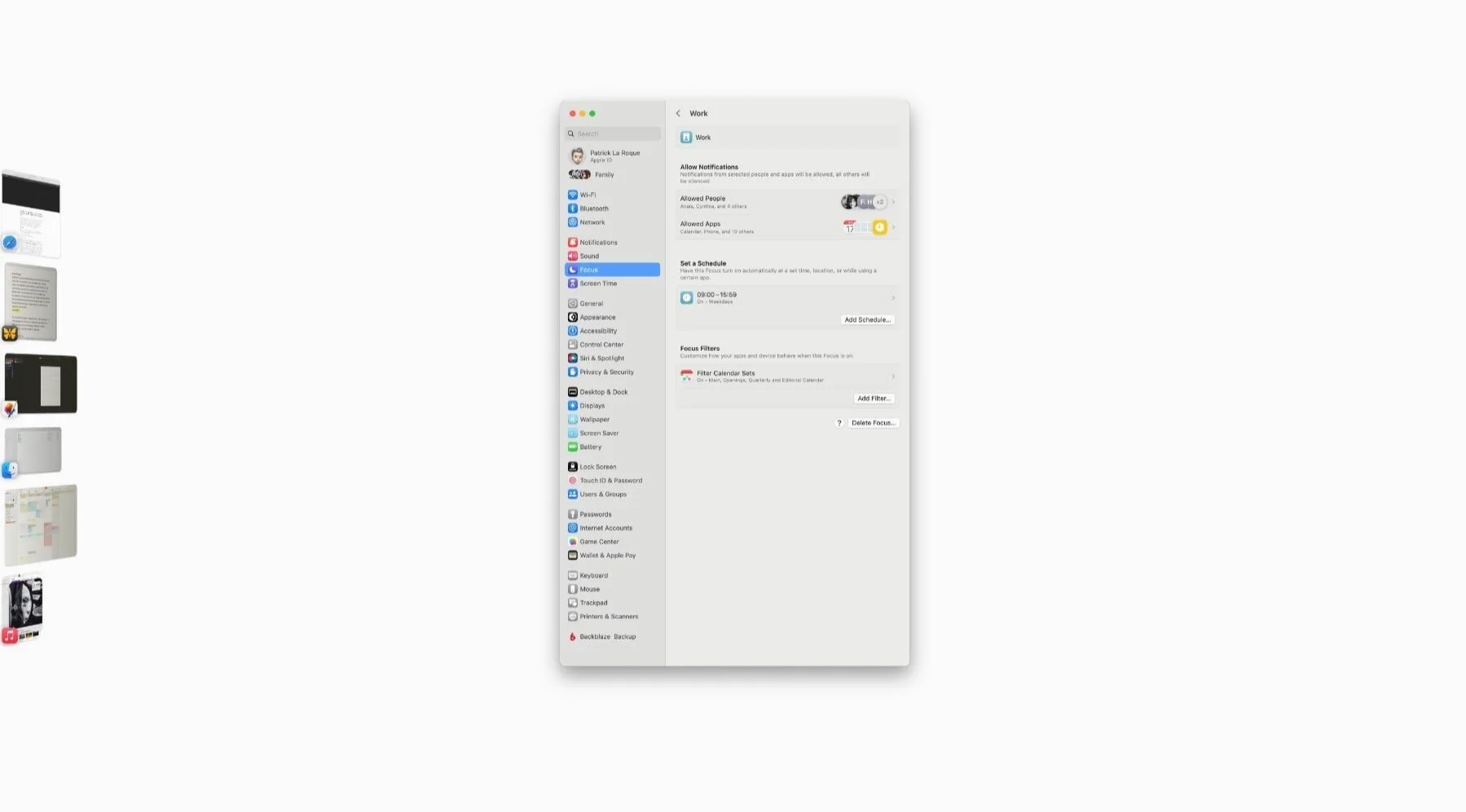
As wide as it gets. Ok.
The most visible change to both platforms is the introduction of Stage Manager: an entirely new windowing paradigm for iPad; yet another way of managing windows on the Mac.
Surprisingly, it’s the Mac version I’m falling for.
Isolation
Let’s get one thing out the way: Stage Manager on iPad is…not ready. I could list every quirk and inconsistency, but I’ll simply point you to this extensive piece from Federico Viticci on Macstories, which literally says it all.
For me, the bottom line is that Stage Manager (in its current form) breaks the iPad’s most powerful feature: focus. Not because it introduces multiple windows (I use split-screen all the time), but because it does it so badly, and erratically. On the Mac, however, I’m experiencing the opposite effect: it adds focus. I’m just a few days in, but it’s already profoundly changed how I organize my workspace on the desktop. Ironically, closer to the iPad, philosophically. Allow me to explain.
Some people love having dozens of open windows overlapping each other: I never really did (this coming from a guy who started at System 7). I always found it noisy. The Hide Others keyboard shortcut became my friend as soon as it was introduced, and through the years I even installed apps that would do this automatically. When I switched to a MacBook, this became even more obvious to me as I wrote in this post:
The way I organize the Mac is now highly influenced by the monolithic nature of iPadOS—I can’t stand overlapping windows anymore. Apple’s answer is Spaces and full-screen apps, but while this is perfect on a MacBook, I find the amount of negative space on a 27” screen overwhelming, for anything but production software.
Stage Manager—again, to my complete surprise—is giving me exactly what I’ve always wanted:
Isolation without the need to enter full-screen: this means I can use any window size, but still create a distraction-free single-app environment. Stage Manager automatically hides other apps when switching.
Isolation, again, but with multiple apps or windows: same deal, but I’m not confined to either a single gigantic window, or just two, side-by-side, through split-screen. With Stage Manager I can create any combo of apps or windows that makes sense, utilizing all available screen real estate. With everything else remaining hidden from view.
On my 27” display, I’m loving this. From my experience on the 12.9 iPad, however, I’m sceptical about its usefulness on the MacBook Air’s display, where Spaces make a lot more sense. But I’ve yet to try.
Quirks
What Apple calls The Stage in Stage Manager (that sidebar of hovering previews on the screen), can only display six thumbnails. So, depending on how you’ve organized your apps and windows, some of them might be hidden, as in the following screenshot:
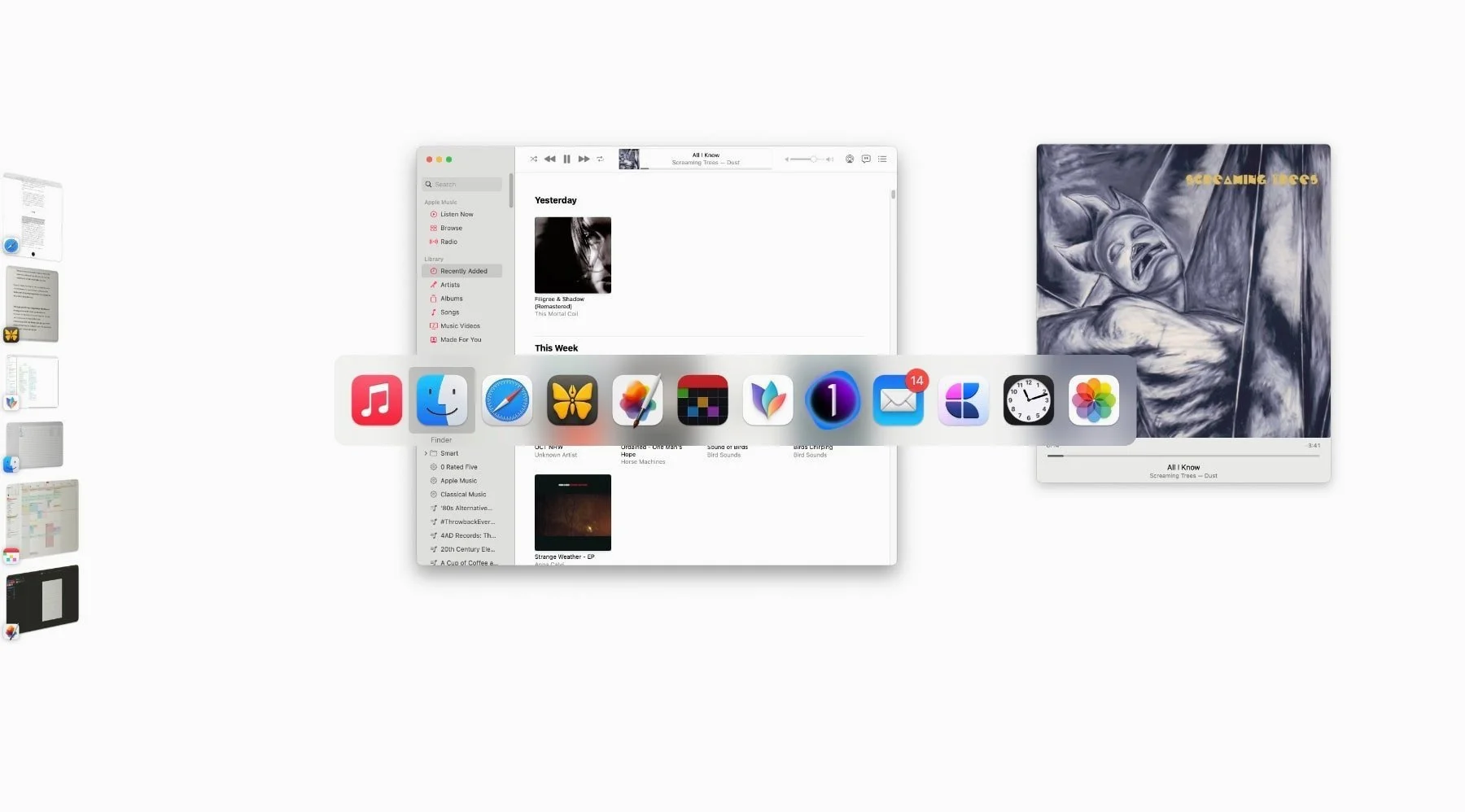
Not currently on Stage: Music, Capture One, Mail, Craft, Clock and Photos.
If you switch to one of the hidden apps with command-tab, it’ll instantly replace one of the previews on The Stage. This makes sense in order to control what could become an unwieldy situation, but it’s something to be aware of that isn’t immediately clear: it’s somewhat unnerving the first time you see stuff moving in and out on its own.
To alleviate this limitation, if you use Spaces AND Stage Manager, each space gets its own instance of The Stage, as seen below:
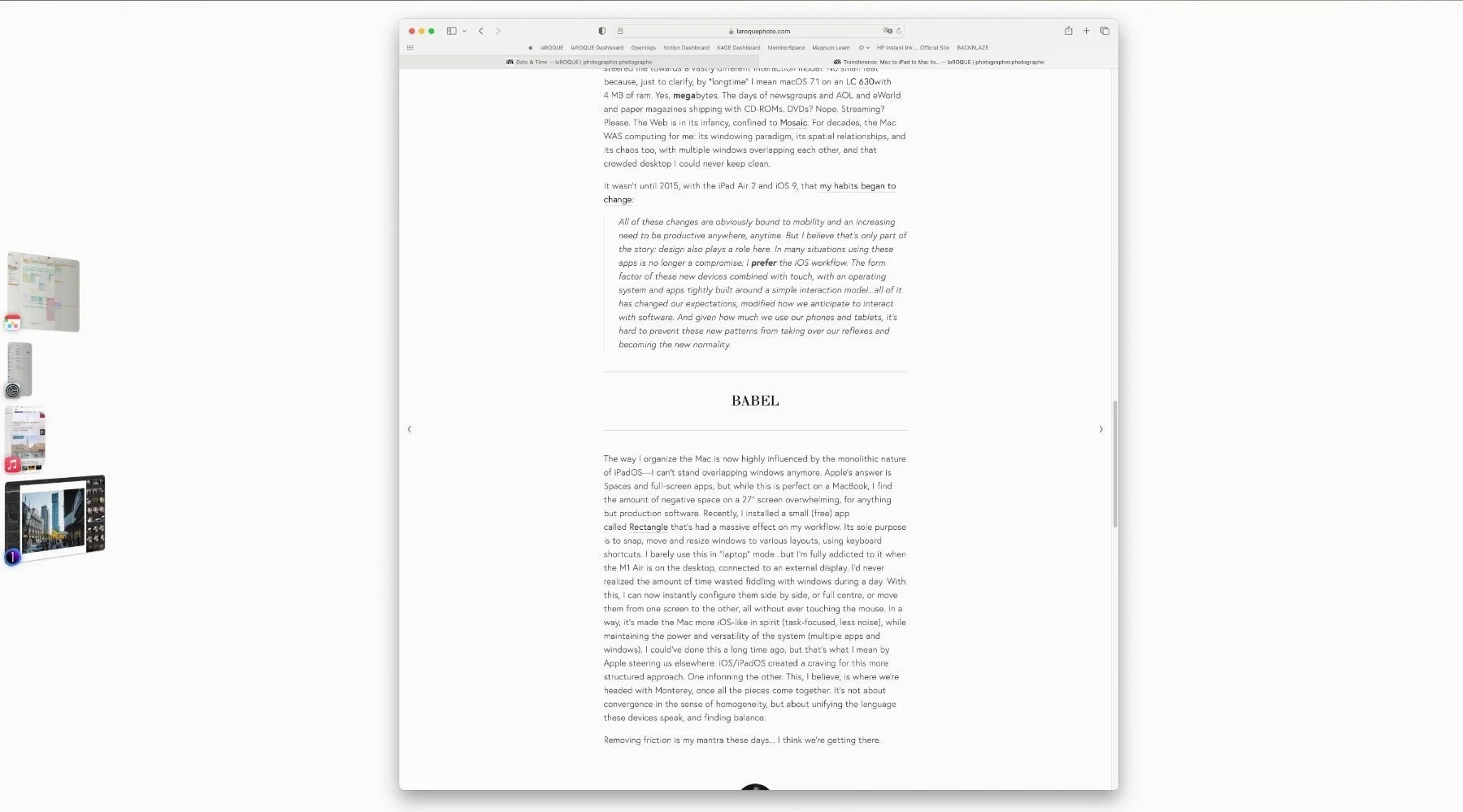

This is a bit labyrinthian, but also potentially powerful: you could, for instance, create a Production space alongside a Utilities space, and have a clear view of all available windows in each one at all times.
I’m still experimenting on this front, but here’s my setup so far:
Stage Manager, in a single space.
Single display too—my MacBook is in clamshell mode.
Mission Control assigned to a hot corner: with this, I can just flick my wrist and navigate to any window/app that’s currently open on the system.
The Dock set to Automatically Show And Hide: this is new for me. I tried it in the past but it never stuck. It might, this time.
A freeware app called HiddenMe that hides all items on my desktop with a click.
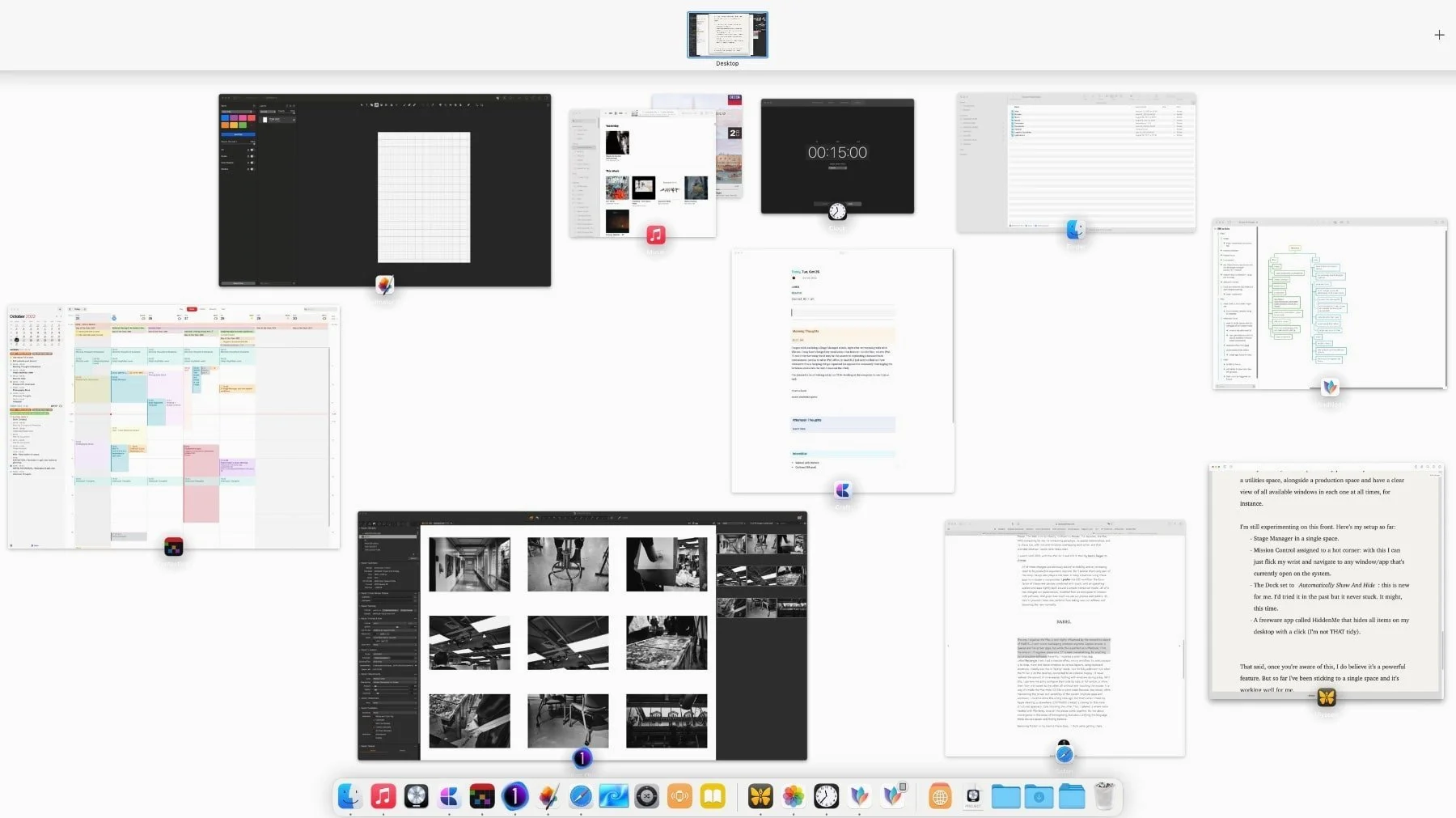
Mission Control in action.
The truth is I don’t much use The Stage at all. I either invoke command-tab or Mission Control to navigate. What Stage Manager does for me is clear out distractions and allow me to organize everything in a much more minimal, targeted manner. This Music screen, for instance:

Achievable with Spaces? Easily. But I never thought of it because a new Space felt like a lot of overhead, just for the Music app. Now, Music still sits in the background, but with two windows, pretty, tidy, and centered, not too small or too big, ready when I need to interact with it. When I switch, everything else dutifully hides away until I return to whatever I was working on. (1)
Rinse and repeat with anything I fancy.
Future
With Apple’s increased focus on…err…Focus, I can’t help but wonder about the possibilities of combining Stage Manager with the newly introduced Focus Filters: something akin to Fantastical’s Calendar Sets integration, for instance. What if we could, similarly, save Stage Manager Sets, and recall them automatically whenever Focus changes—Work, Personal, Weekend…etc? Or go even deeper with more specialized Focus Modes: photography, music production, accounting. Each one would switch us to the perfect task-based environment, with every app and window at the ready. Could be fun, right? (2)
I digress.
I was barely curious about this feature when it was presented during WWDC. When support was added to my iPad Pro, a few weeks ago, I turned it on, only to run away from it as quickly as I could. I tried again with this week’s release, but nope.
And yet I’ll be darned if this isn’t the most impactful feature to come to my Mac in years. I’m sure it won’t be to everyone’s taste (there’s a reason it’s not turned on by default), but unless some unforeseen issue arises, I don’t see myself going back.
Son of a gun.
––––––––––––––––––––––––––––––––
Wondering about all those birds albums? I was looking for a track to add as an Alexa wake up routine…
As I mentioned, this is kinda possible right now by using Spaces. Not the same though.