The Daily Stuff: Fantastical + Reminders
This is a quick addendum to the Date & Time post.
With the switch to Fantastical I also reviewed my method of saving writing/topic ideas. Keeping a list of ideas is ridiculously easy nowadays: every task manager, every note-taking app, offers quick and sure ways of jotting down anything that comes to mind. Over the years I’ve used Things, Notes, Todoist, Tick Tick, Notion, you name it. Most recently, I’d set up a dedicated Craft doc for this purpose.
The idea behind using Craft is that I could easily turn any topic block into its own full-blown page where a subject could be brainstormed, developed etc. It’s a powerful feature that I use extensively on larger projects, but it was mostly going to waste in this scenario. Writing, for me, lives in Ulysses. And when a subject is complex enough to require outlining, I generally turn to MindNode. Craft is great at bringing multiple sources and file types together, but for topics, I only need three things:
Quick capture.
Visibility when planning.
Easy scheduling.
In practice, this is typically one line of text, maybe a couple of notes, sometimes a URL. Perfect for Reminders.
TAKE ME TO THE BRIDGE
Fantastical includes a Task feature, but it’s really just a built-in UI for the Reminders app. It’s very barebones: it supports only top-level folders (subfolder tasks appear in a flat list), no tags, or location-aware features either. Frankly, it could use some love. But the advantage of Reminders is how deeply integrated it is with the OS—Siri, Shortcuts etc. It’s also supported by IFTTT, which allows triggers from voice assistants. Obviously, iCloud as well.
All of these transfer over to Fantastical, just through the power of integration. I don’t like capturing tasks in the Reminders app, but it doesn’t matter because I rarely need to.
SETUP
So here’s how it works. In Reminders, I have a list called TOPICS. It includes “tasks” that are really just potential subjects, with no assigned due dates. I can add to it using any of the tools I just described: this takes care of the Capture part.
When I’m planning the week, I can look at the TOPICS list in Fantastical, next to my calendar (1). Visibility, check (2). Thanks to the app’s integration, dragging a task from this list to a specific day will automatically assign the selected date and time:

A task, dragged into the calendar. The date and time are also set in Reminders btw—it’s all one big, happy family.
Scheduling, done.
This is nice, but:
Tasks are not calendar events. This means they’re not taken into account by the Openings appointments feature. 3
Tasks don’t include duration.
For me, the entire point of using a calendar is the ability to assign an actual chunk of time to a task—which requires a duration. Fortunately, Fantastical offers a quick way to do this: it’s called Duplicate as Event.
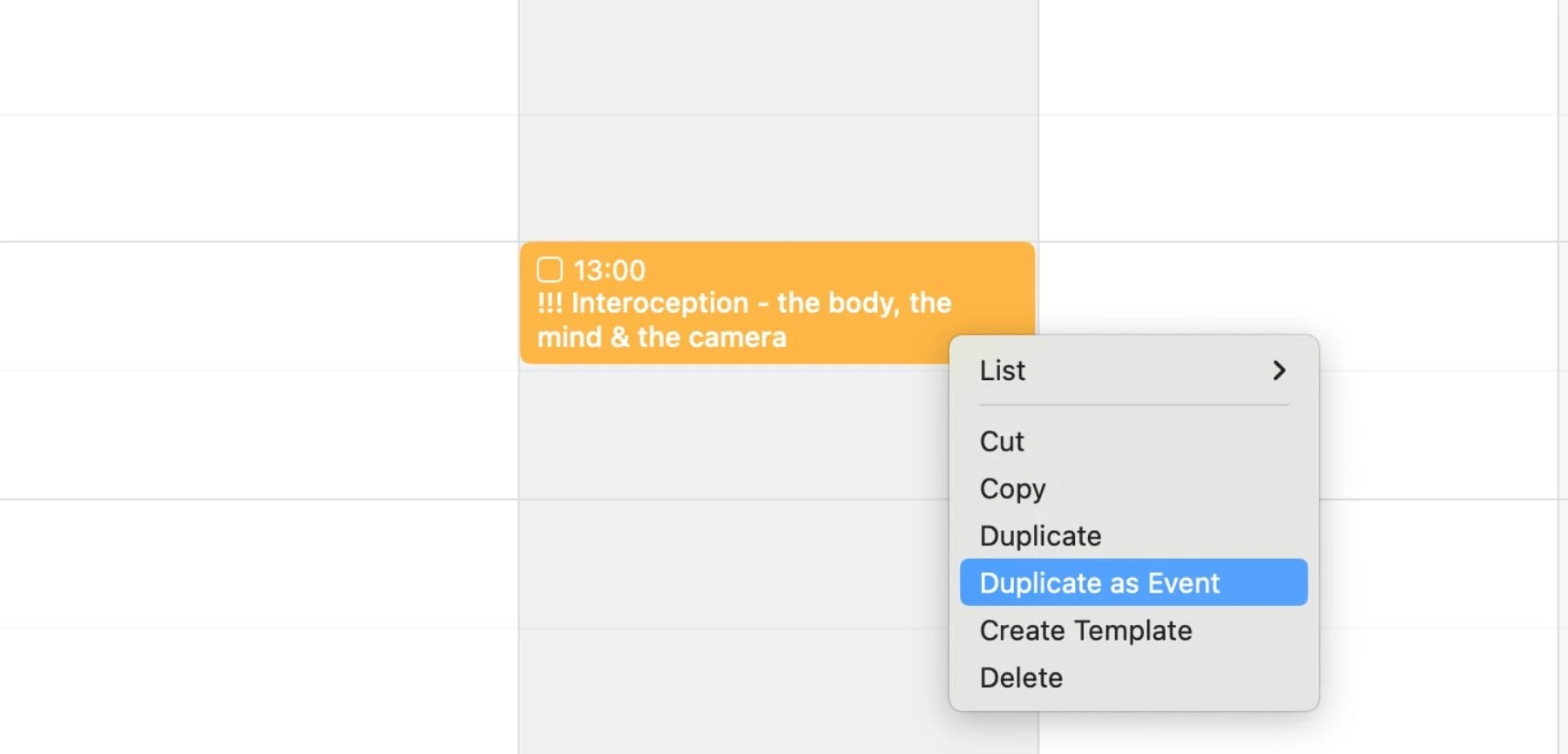
Any task can be duplicated this way, either from the Tasks list, or directly from the calendar (as shown above) where it does three things:
It uses the task’s start time for the new event (so it immediately appears next to the original task).
It uses the default event duration (which is user-defined— mine is 90 min).
It assigns the new event to the default calendar (again, user-defined).
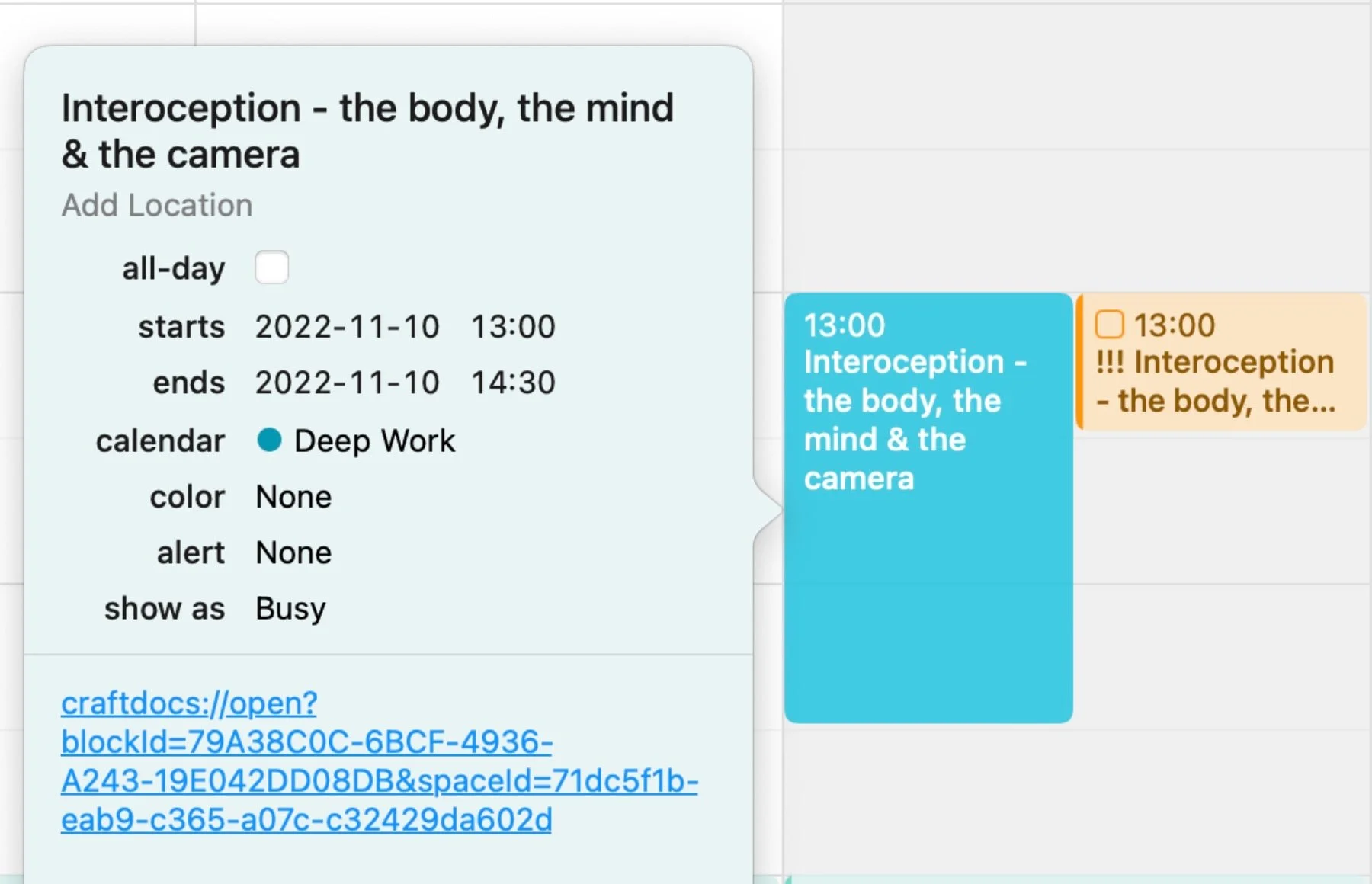
Notice the 90 min block. That URL is a link to a Craft document.
All of these settings can obviously be changed at any time, during or after creation, but those customized defaults make the whole process very efficient.
Now: what’s the use of the original task at this point? It’s a fail-safe. If, for some reason, I decide to write about something else, I can just delete the event and remove the date from the corresponding task. I won’t lose the idea: it’ll still appear on my TOPICS list, ready to be scheduled—as long as I don’t check the item off.
…
With a recent update, Fantastical now also finally uses the Priority field to sort tasks, as well as date/time. So, it’s now possible to pin certain tasks in a list by simply raising their priority level. It’s a nice addition—and strangely overdue.
Tasks lists in Fantastical are also tied to Calendar Sets, which means you can keep groceries out of view during the workday, pick specific lists to appear at certain times etc.
Of course, all of the above is applicable to any other type of work—although the lack of subfolder and tag support really takes away from what could be a true killer feature. Still, this is the closest I’ve come to being friction-free on this front. Good enough for now.
––––––––––––––––––––––––––––––––
1. In Fantastical, make sure to check Organize tasks by list under Settings.
2. Oddly, this is much more elegant on iPad, using Split View. On the Mac the Task list is only available from the Mini Window in the Menubar (which can be detached to become a floating window).
3. Openings use calendar events from any user-defined calendars, to determine availability.