There are multiple ways to launch shortcuts:
From Shortcuts (the app).
From desktop widgets.
From a Spotlight search.
From callback URLs (in ANY app that supports hyperlinks).
It's even possible to create an alias of a shortcut—by using Add to Dock on macOS, or Add to Home Screen on iOS/iPadOS. There's no shortage of options, and I use most of them. But with the move to Bear I started looking at ways to consolidate the ones I was using the most, in order to group everything under a single destination, across devices. A master shortcut, if you will. This is what its current iteration looks like:
iPad: the icon to launch this shortcut sits right next to Bear in the Dock (thx to Ben for the emoji idea).
iPhone: same deal (pre-emoji)
Master = Menu
The basis for this workflow is that any shortcut, can run any other shortcut, through the Run Shortcut command 1. This isn't new, and I'd used this function extensively over the years (2), but always within a targeted context: writing, music, system-related stuff, a specific app etc. I'm not sure why, but I'd never thought of grouping multiple shortcuts based on usage.
In Shortcuts (the app), this is accomplished with two block types:
Choose from Menu.
Run Shortcut.
It couldn't be simpler. You just add the Choose from Menu block, and type in the number of items you'd like to launch. It defaults to two, but you can add more: Shortcuts will automatically insert the required entries and name them accordingly. Under each menu item you then add a Run Shortcut block, and pick a shortcut. That's it. To re-order the menu just drag the handles—all the blocks below will move accordingly (3).

This is the default Choose from Menu block.
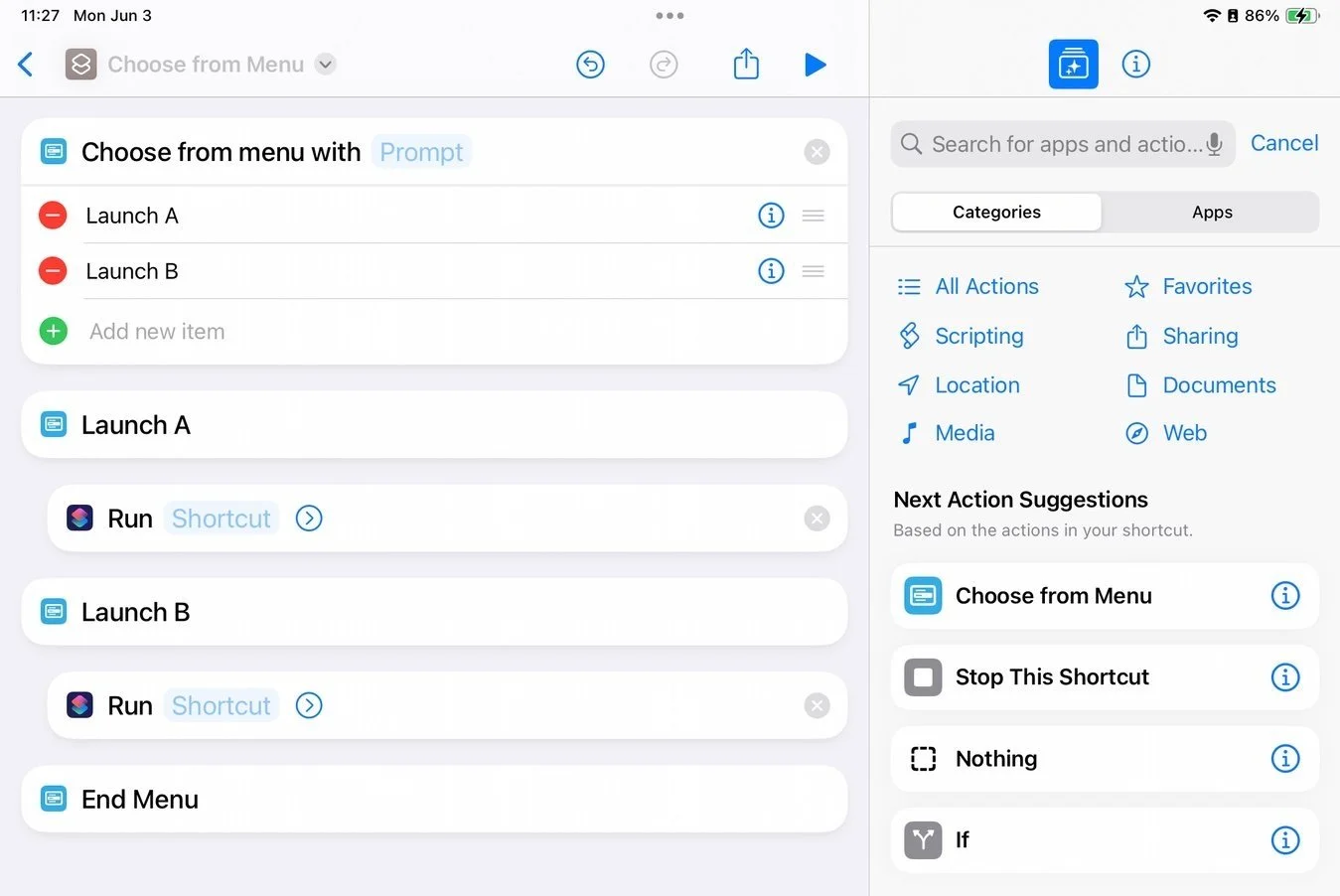
Here I've renamed the menu items and inserted the Run Shortcut commands.
HQ
I've named mine Bear HQ, because all of the menu options plug into Bear at some point, but many of them also manipulate content in Things and Fantastical. Coffee & Photography creates all the required notes, tasks, events, and even inserts a pre-populated table in a student note for each session. The Traces Setup launcher controls Safari, positions windows, and changes several system settings on the Mac to make the process more streamlined. These linked shortcuts can be as simple or as complex as we need them to be (this really is nothing but a menu). It's also trivial to add or remove menu items if need be.
By keeping this master shortcut in the Dock, on the Mac, iPad, and iPhone, I get an instant, identical entry point to all my daily drivers.
————————
1: Can I admit how tough it is writing about this topic? Things were much simpler when the app was called Workflow (!)
2: I have a folder called Building Blocks where I store shortcuts meant to be launched from larger workflows.
3: Interestingly, I'd initially ordered this menu by priority—the most used at the top and so on, which seemed like the most logical solution. But I quickly noticed that my brain would freeze as soon as I moved down the list. I'd lose my bearings. An alphabetical order fixed this: my eyes know where to look.