How I use Craft in an ideation workflow
Today, I’m following-up on a previous post in which I described the concept behind the In Link Think Make system. I suggest reading that one first if you’re interested in the topic and haven’t done so already. This will be more of a practical view into the way I use Craft, specifically, as that system’s central hub. By the way: I have no affiliation to the app or its creators, I just enjoy using it.
Space
My challenge with note-taking has always been about balancing retrieval with overload: use too many different apps and content gets lost; put everything in one place, and the content eventually disappears, buried under accumulation. Craft allows the creation of spaces, which are essentially like separate accounts, each with their own individual content (and, optionally, their own set of collaborators). This is quite powerful and, as far as I know, there’s no limit to the number of spaces you can create (1). It’s also possible to use the app with an external location, using any folder, local or networked (2).
So I’ve dedicated an entire space to In. Link. Think. Make. Structurally, this means that everything I add or create in this particular space will be organized into one of those four folders. It’s either a topic I wish to reflect on, or it’s directly tied to an ongoing project (writing, photography, music etc). This is a thinking and brainstorming space, period. Nothing else. (3)
Here’s how I use it.
The Collected Document
Many PKM (4) proponents suggest using a separate app to collect ideas/thoughts/links etc. The goal is for this to act as a gatekeeper, and to ensure only tightly curated content reaches the main database/repository. Maybe I’m weirdly wired, but this has always led to a return of my old squirrelling habits, so instead, I use a single, dedicated Craft document. I call the document Collected, and its sole purpose is as a temporary holding spot. If I come across an interesting article, or if an idea pops into my head, this is where it goes. There are two rules attached to this particular document:
Content must be actionable, i.e., something I will be researching/using as part of my creative work. If I come across a cool looking piece of furniture…there’s another space for that.
It must be pruned regularly: if an item has been lingering for too long, chances are I’m not really interested, and this is unnecessary noise. The point is to act on content, avoiding the trap of just keeping topics or ideas around—the dreaded illusion of knowledge. So I set time aside, regularly, to go through the document and decide what stays and what doesn’t.
The IN and THINK folders
Any subject worth pursuing is turned into a standalone document, which is easily done in Craft: on macOS right-click the block and choose Move To New Document(s); on iOS/iPadOS select the block, tap Actions and Convert to Doc.
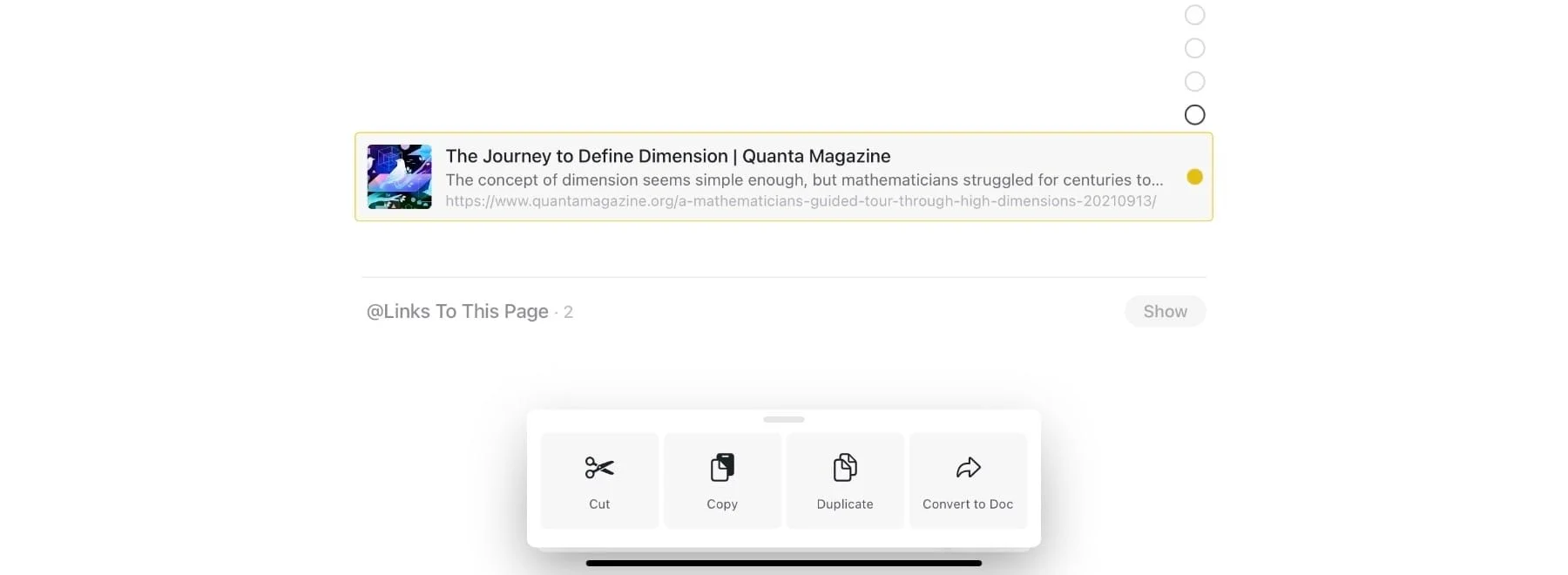
Converting a saved link to a new document on iPadOS.
The next steps depend on the type of content I’m saving: project ideas get filed into the MAKE folder, ready to be used as Chaos Documents (i.e a kind of free flowing whiteboard); research topics (I call these Structured Documents), are instead moved to the IN folder. For these, I add two elements:
The date and time, as part of the document’s name.
A pre-defined header, ready to be filled. Craft doesn’t have templates yet, so I’ve created two Shortcuts to accomplish this (both simply create the required text and send it to the clipboard). This is what it looks like:
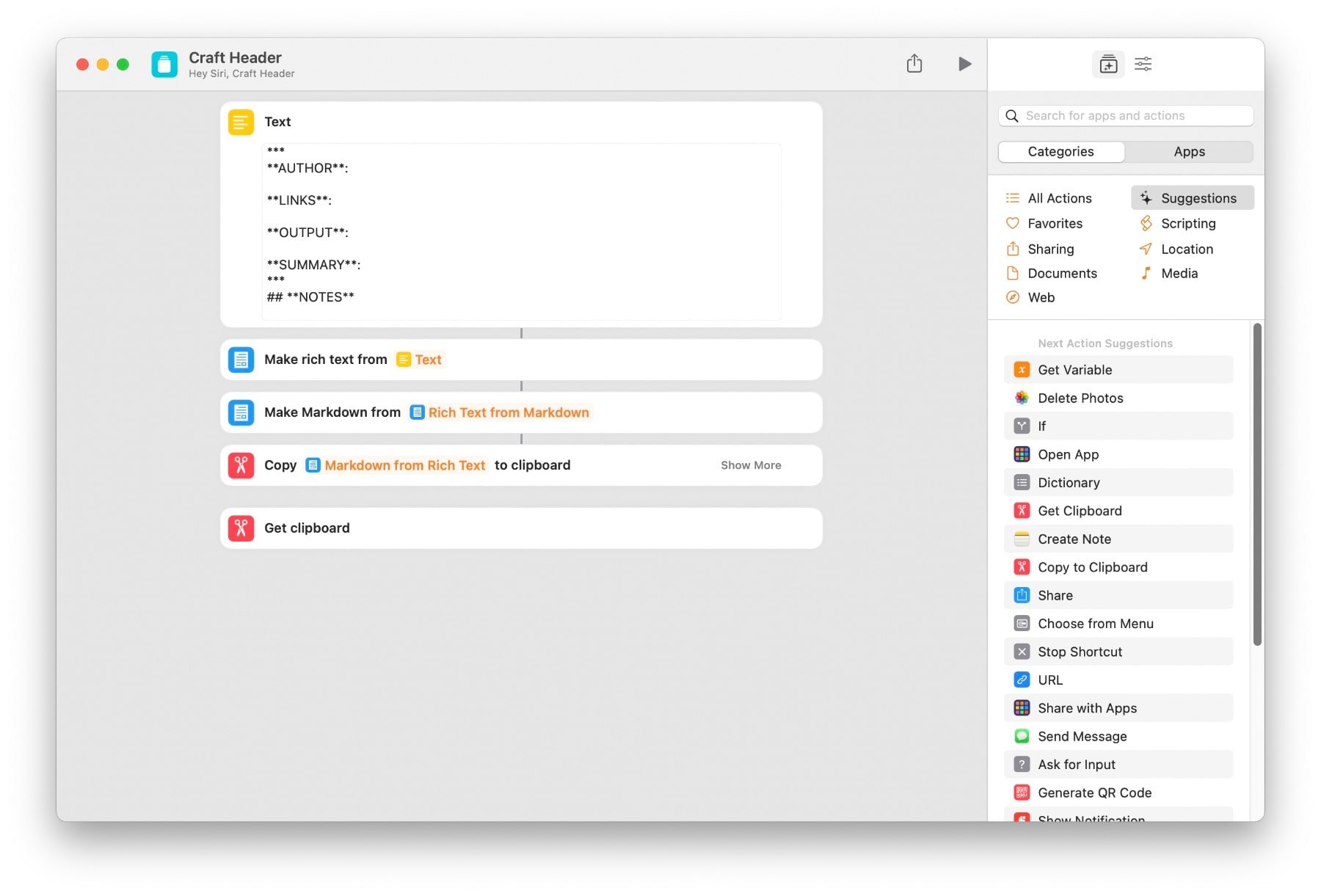
The Craft Header shortcut.

The results, pasted into the new document.
I format the header using Markdown, which allows the creation of rulers, headings, and styles. Nothing super fancy, just a standardized format that’s clean and clear. As soon as I add my own thoughts, the document moves to the THINK folder.
The LINK folder
This is where bidirectional linking comes into play. In any new structured document, my first action is to add any relevant links I can think of: the point isn’t to be precise but to jumpstart ideas. I could link a passage in Anaïs Nin’s diaries, or an article on qualia, to photography—as long as it feels potentially applicable. It’s like a quick brainstorming session. And none of it is static: as a document develops, more links may be added along the way (I keep these tidy with the Toggle List feature). In Craft, typing @ immediately opens a window that allows linking to:
Any previous document.
Any block.
A brand-new document if none exists. This uses search-as-you-type and it’s extremely fast. But it’s also powerful because the system is dynamic: any link added to one document will also appear in the linked document as well (that’s the bidirectional part).
Here’s what I wrote about the LINK folder in the previous post:
This is a special folder that’s very much tied to the way Craft works… Think of it as a bibliography: it contains all the main topics, with dynamically created backlinks to every document where each are mentioned. The LINK folder is where I file all documents that serve as pointers: all they contain is a title (i.e., the topic/name) and Craft’s automatically generated @Links To This Page section.
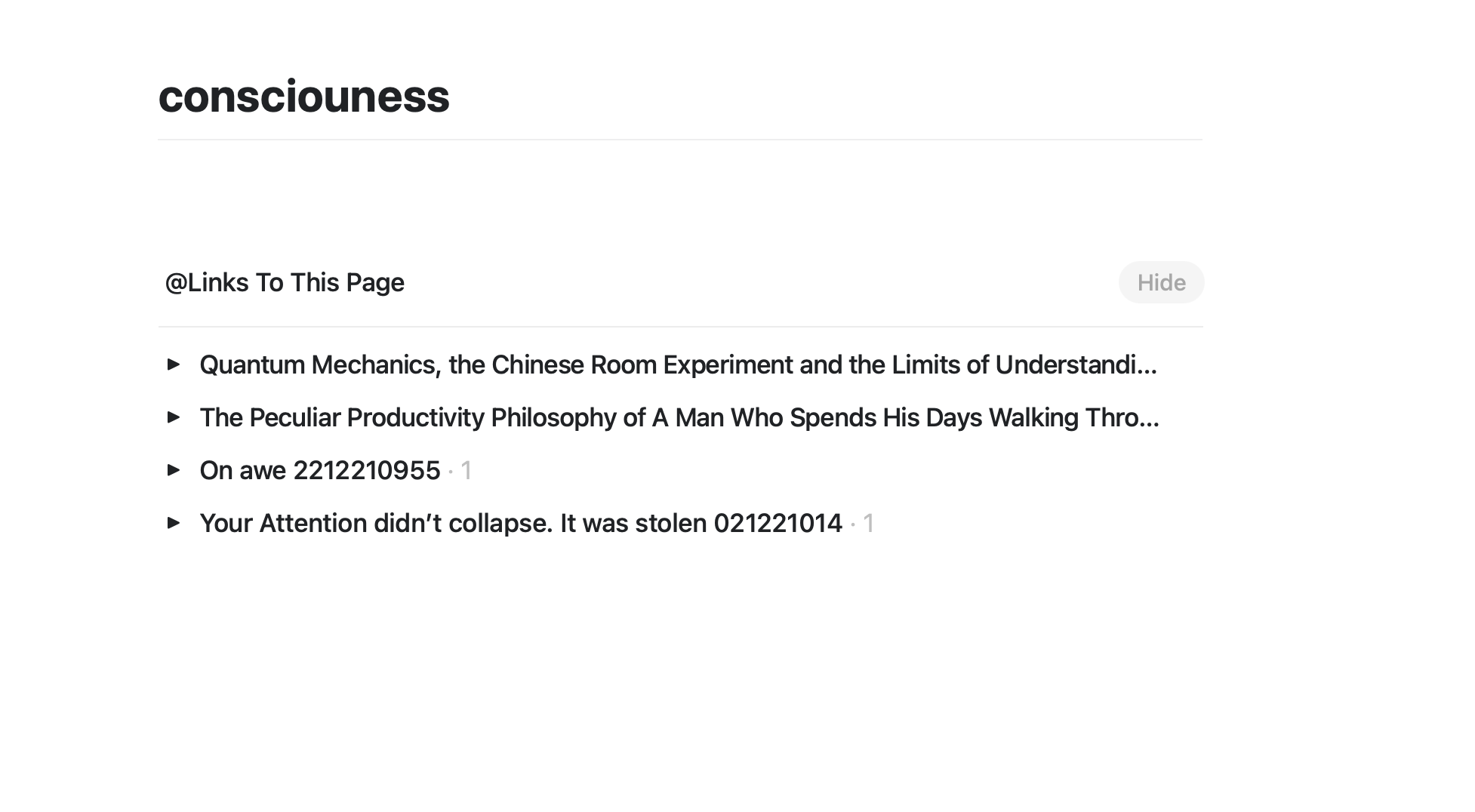
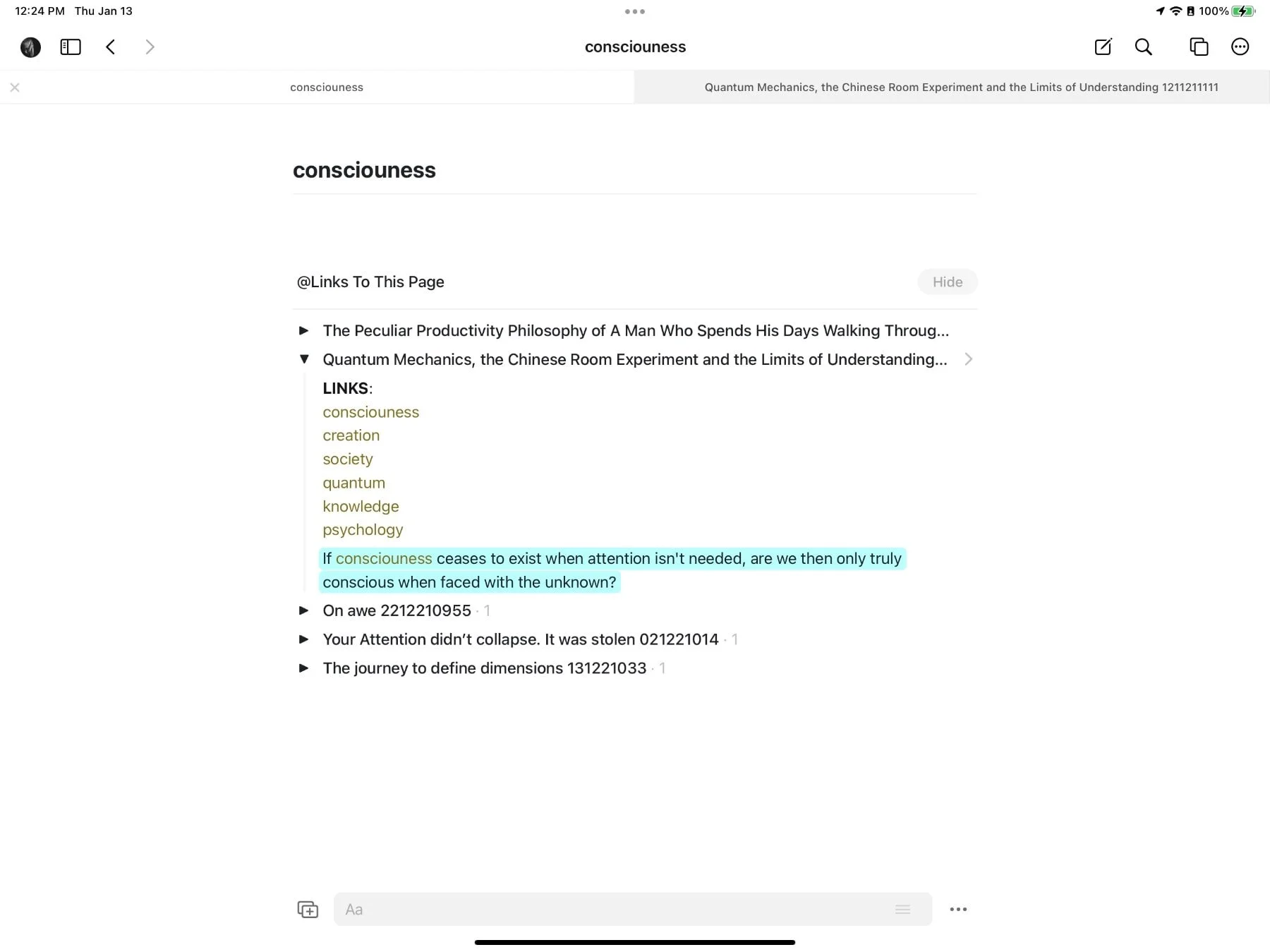
A generated @Links section in a document named “consciousness”, filed in the LINK folder.
In essence, these are aggregators, expanding as the content grows. Here’s an example using the document we just created. Let’s add the consciousness link:

Typing the first letters immediately filters possible results…
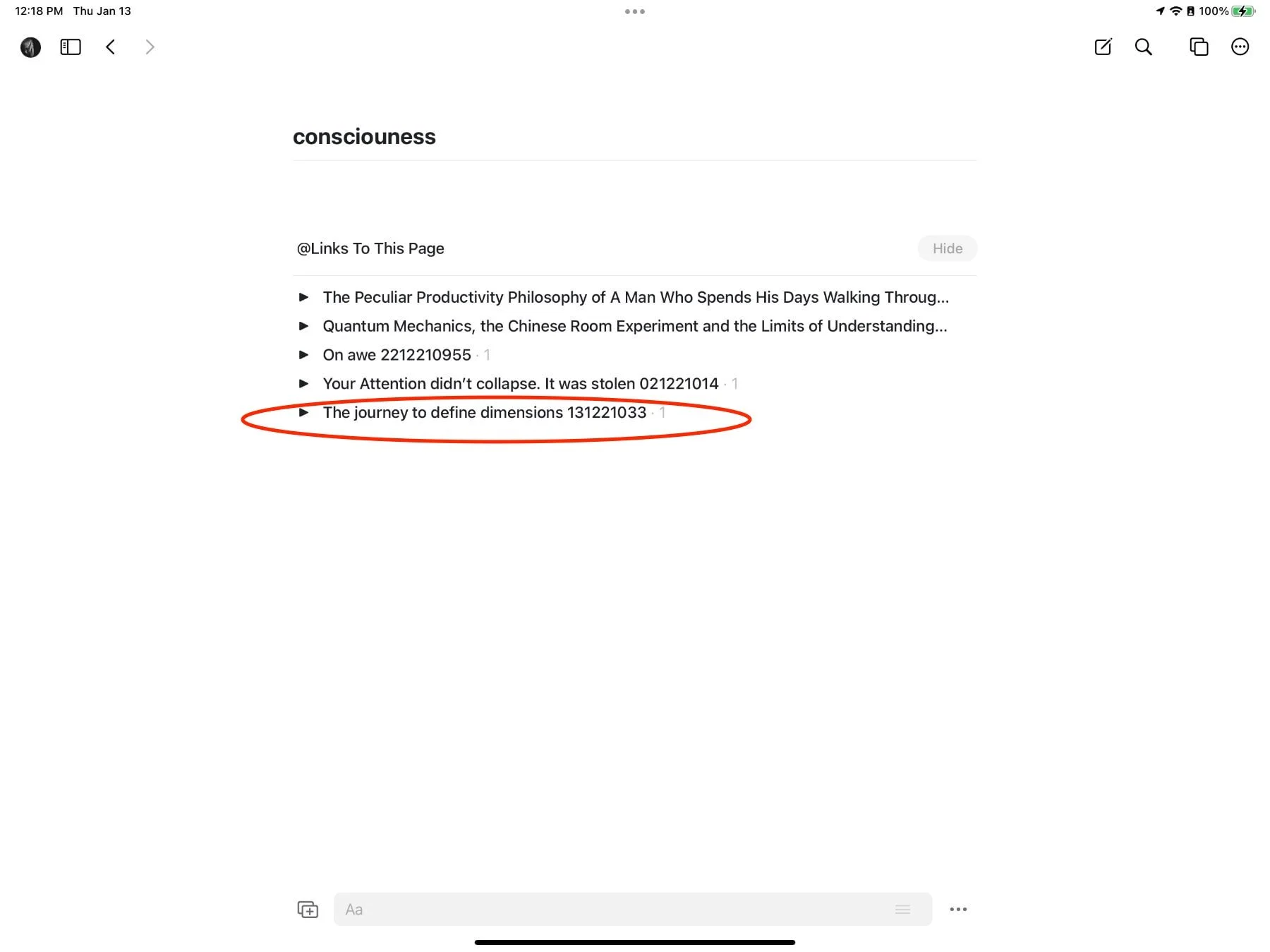
A generated bidirectional link.
As you can see, our new document now automatically appears in the consciousness topic/document. If I changed the name of this consciousness doc to about consciousness, all the links, everywhere, would change as well. By the way: clicking that small disclosure triangle will display any block where the term is used in a document. This means it’s not only possible to link to a word, but also to an entire paragraph:
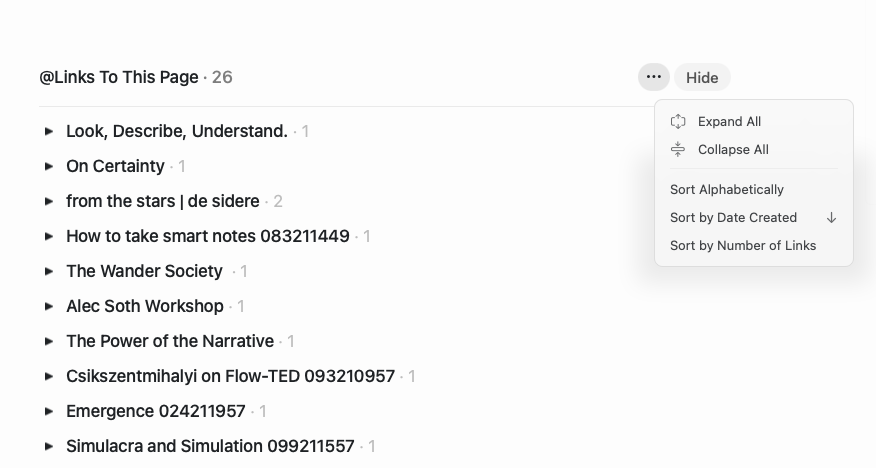
Following a recent update, these sections can also be sorted according to various criteria:
I wrote about returning to a more structured workflow a couple of weeks ago: this “method” was the starting point. As much as I love (and need) chaos, having a reliable framework instead of a scattered, constantly changing approach, is proving much more productive. God, I can’t believe I’m using the P word. But this isn’t about productivity as an end in itself, or busyness, where a system eventually devours the goal it was meant to serve—it’s about output. It’s about shipping.
It’s about moving.
………………………………
If you’re a PRO subscriber.
The feature set in this case is exactly the same, minus Craft’s collaboration features and (blazing fast) built-in cloud sync.
I use other spaces as well that are more freeform: a dedicated home space, for instance, which I share with Cynthia so we can both add content.
As in Personal Knowledge Management.